Lekkafy mobile app
Get started with your family
Create a family space, invite someone, set shared and personal budgets, and see how long your household savings could cover essentials.
Step by step
Create your account and choose With my family
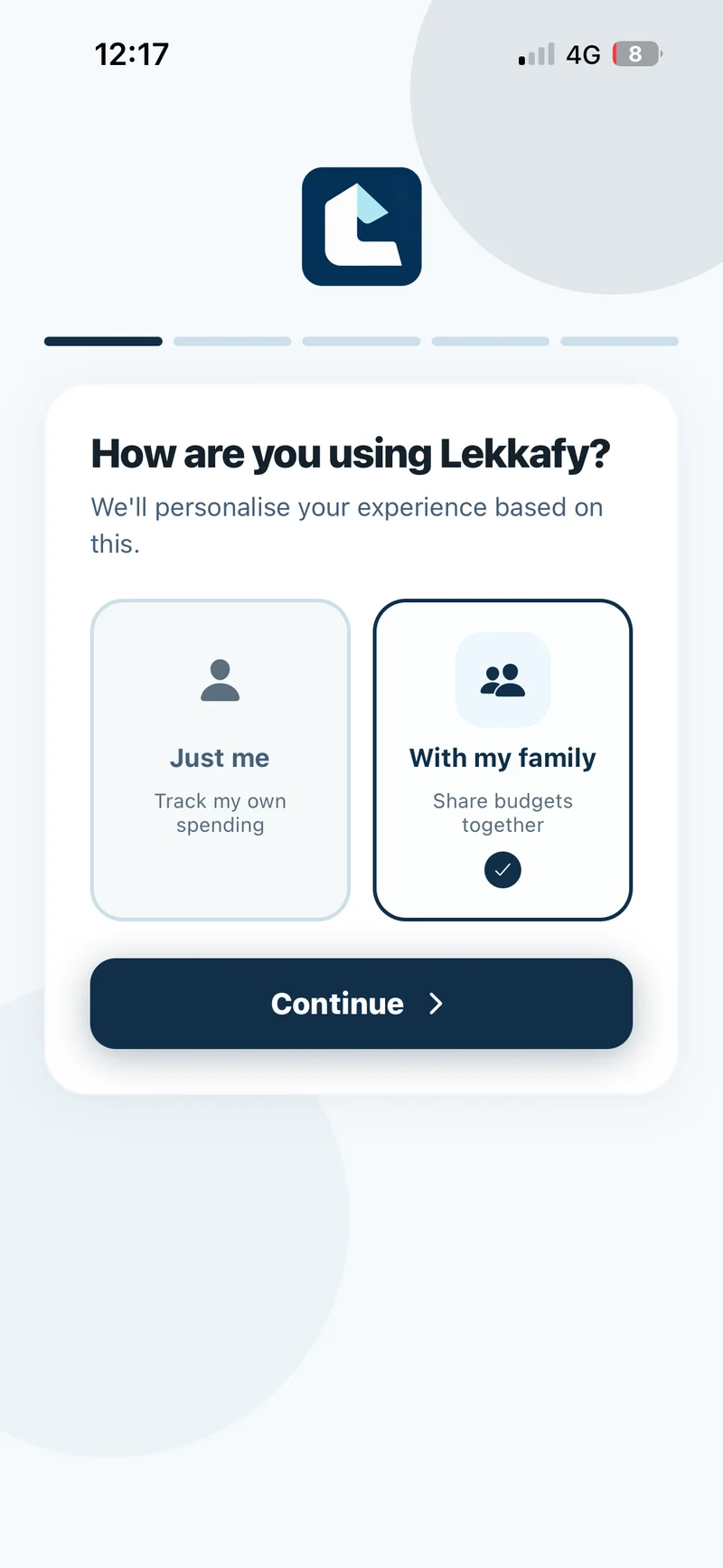
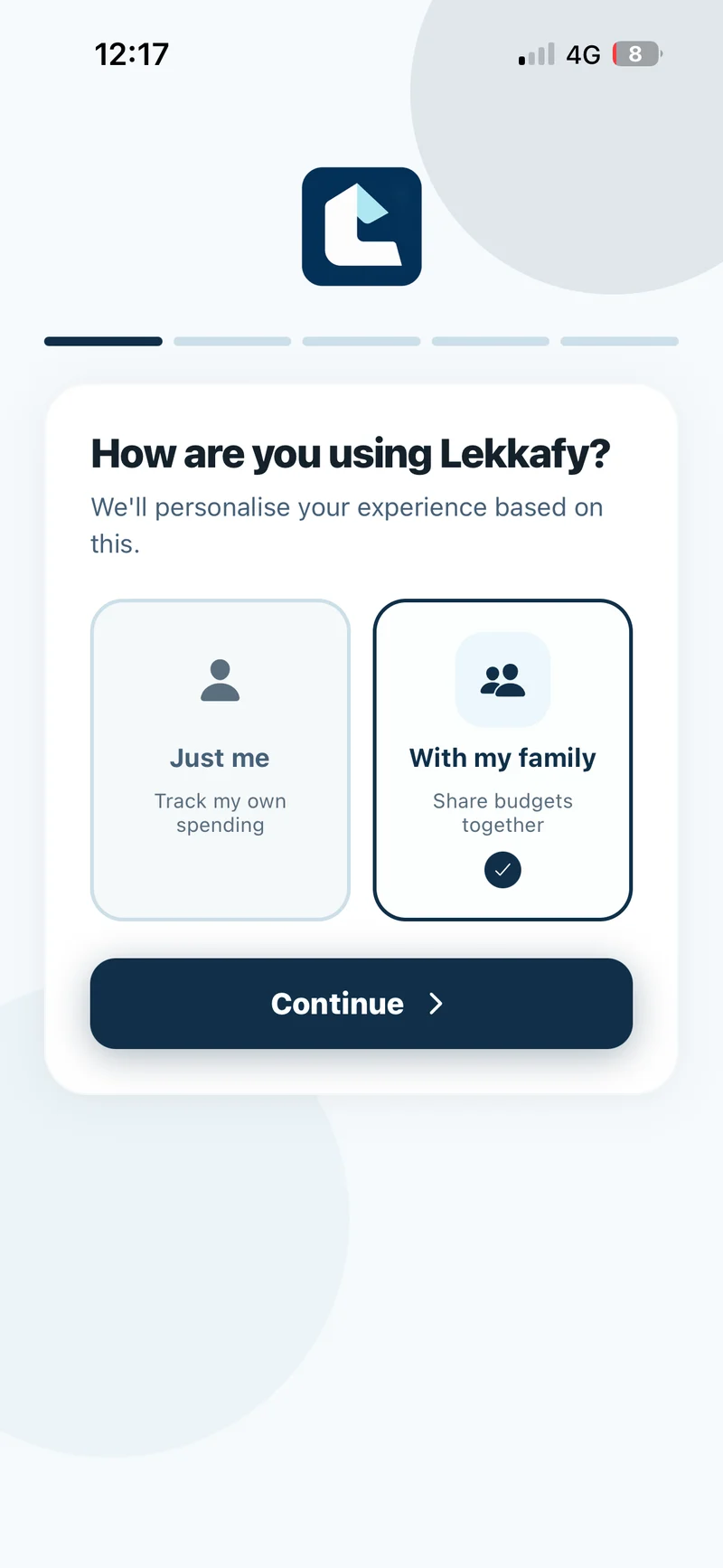
Tap Get started free, enter your email and tap Continue. Enter the six-digit code from Lekkafy or open the sign-in link in the email. On How are you using Lekkafy?, choose With my family and tap Continue.
Show screenshot
Name your family space
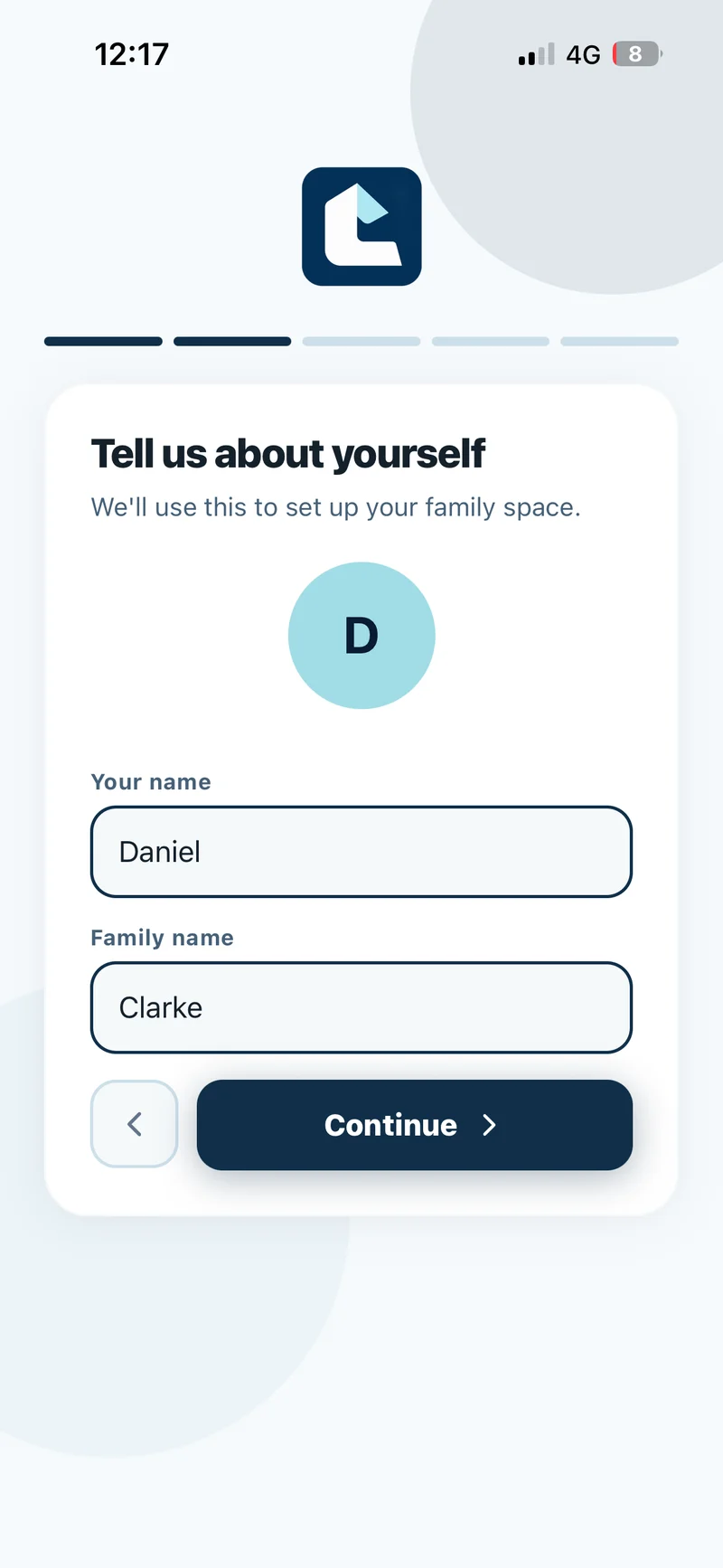
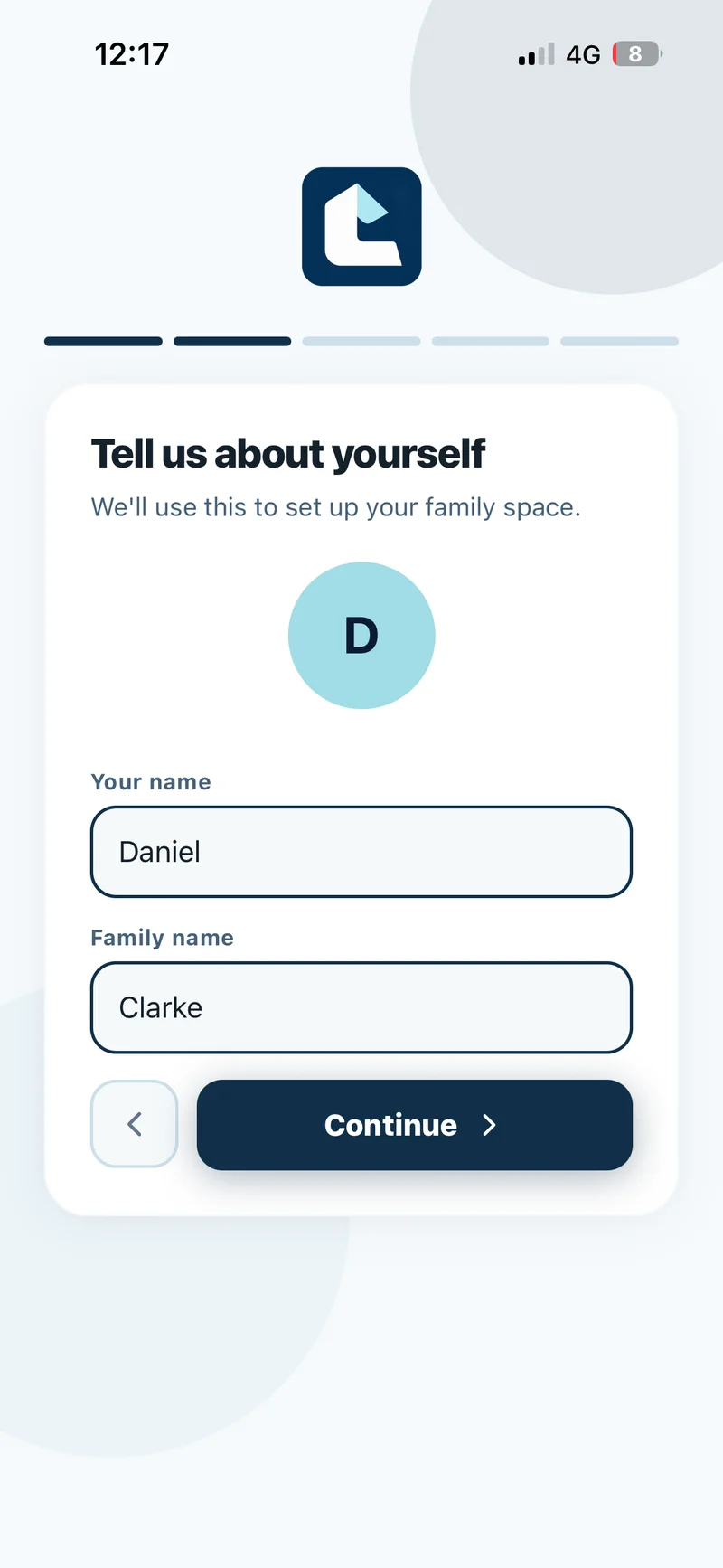
On Tell us about yourself, enter Your name and a Family name your household will recognise, then tap Continue.
Show screenshot
Send invitations
On Who else is in your family?, enter each person’s name and email, then tap + to add them to the list. Tap Send Invites & Continue. Each person gets an email link to join. You can tap Skip for now and invite people later from More → Household → your family → Add a member.
Set shared spending limits
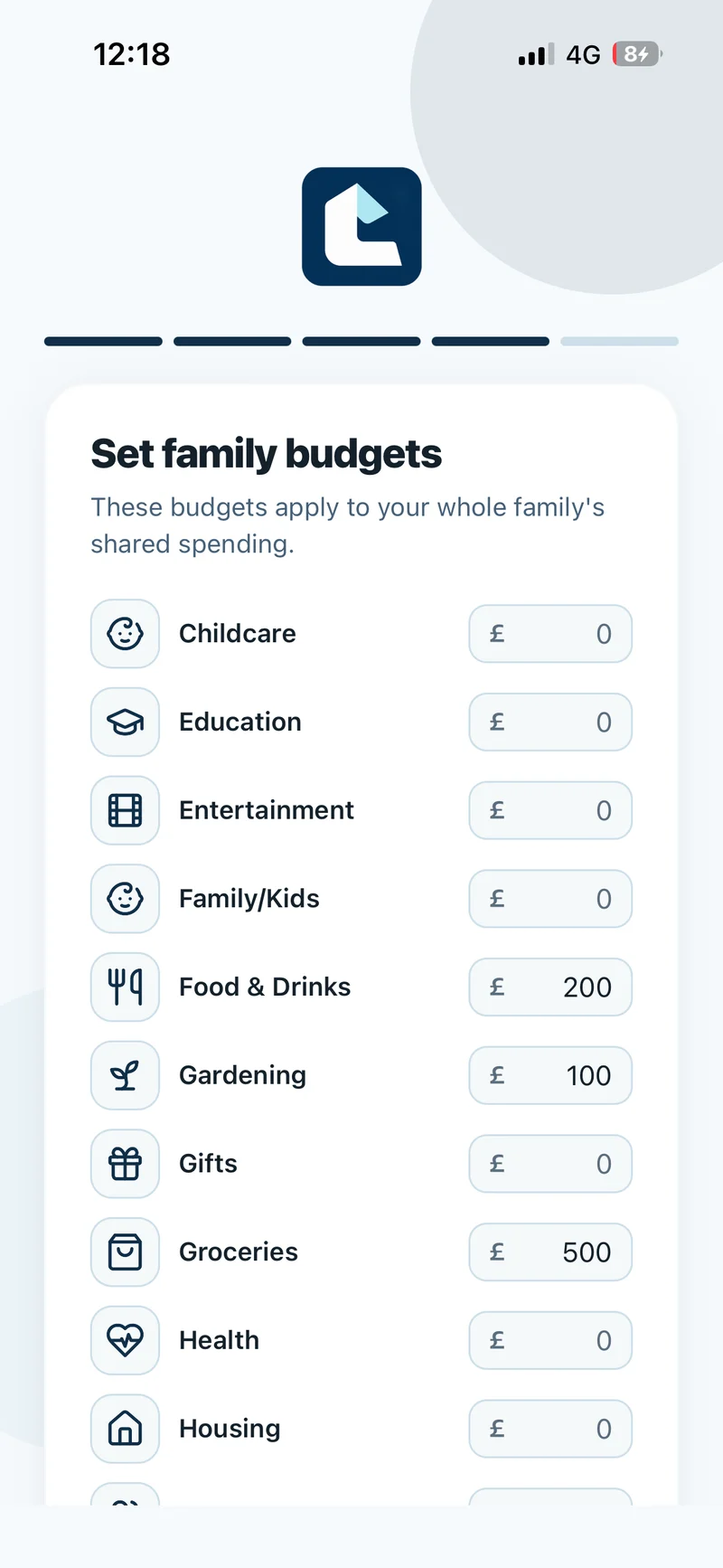
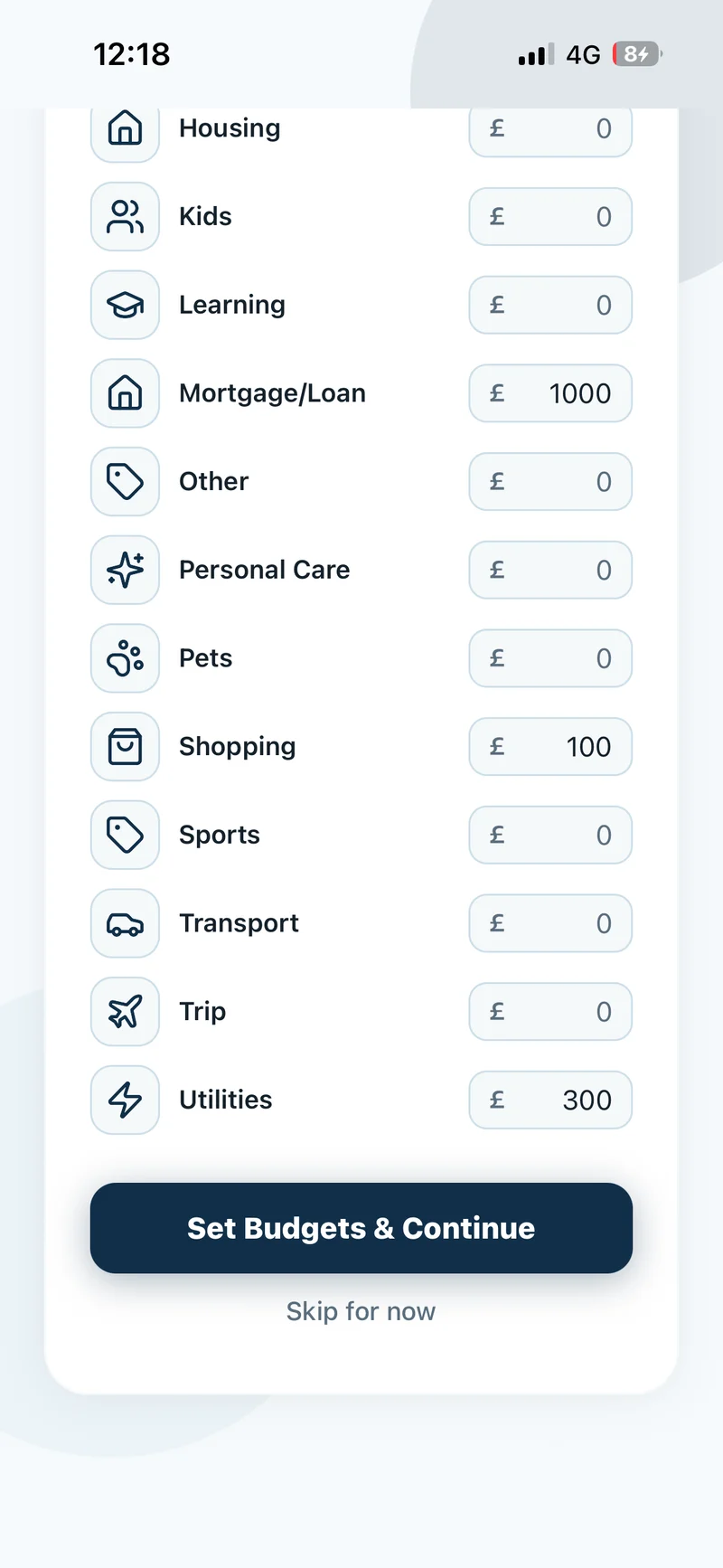
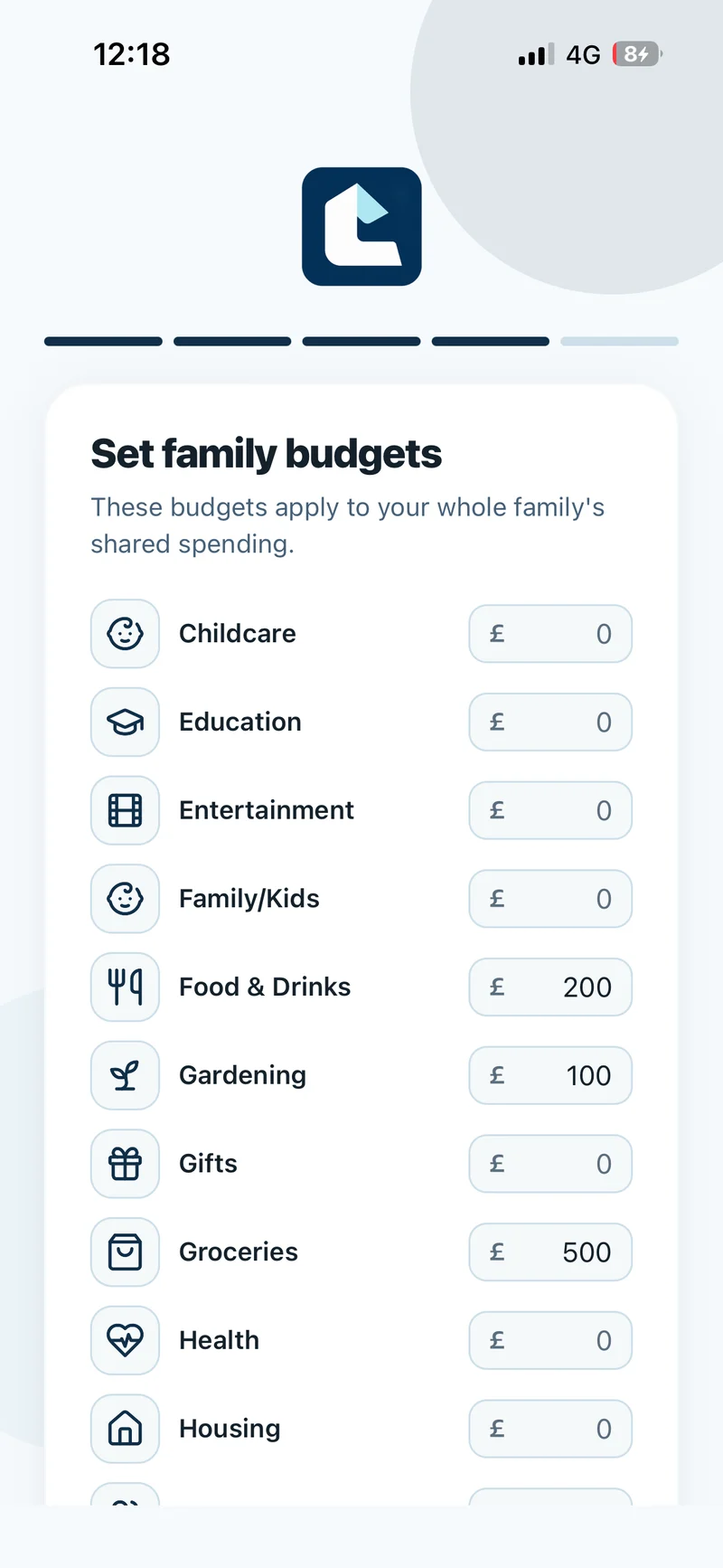
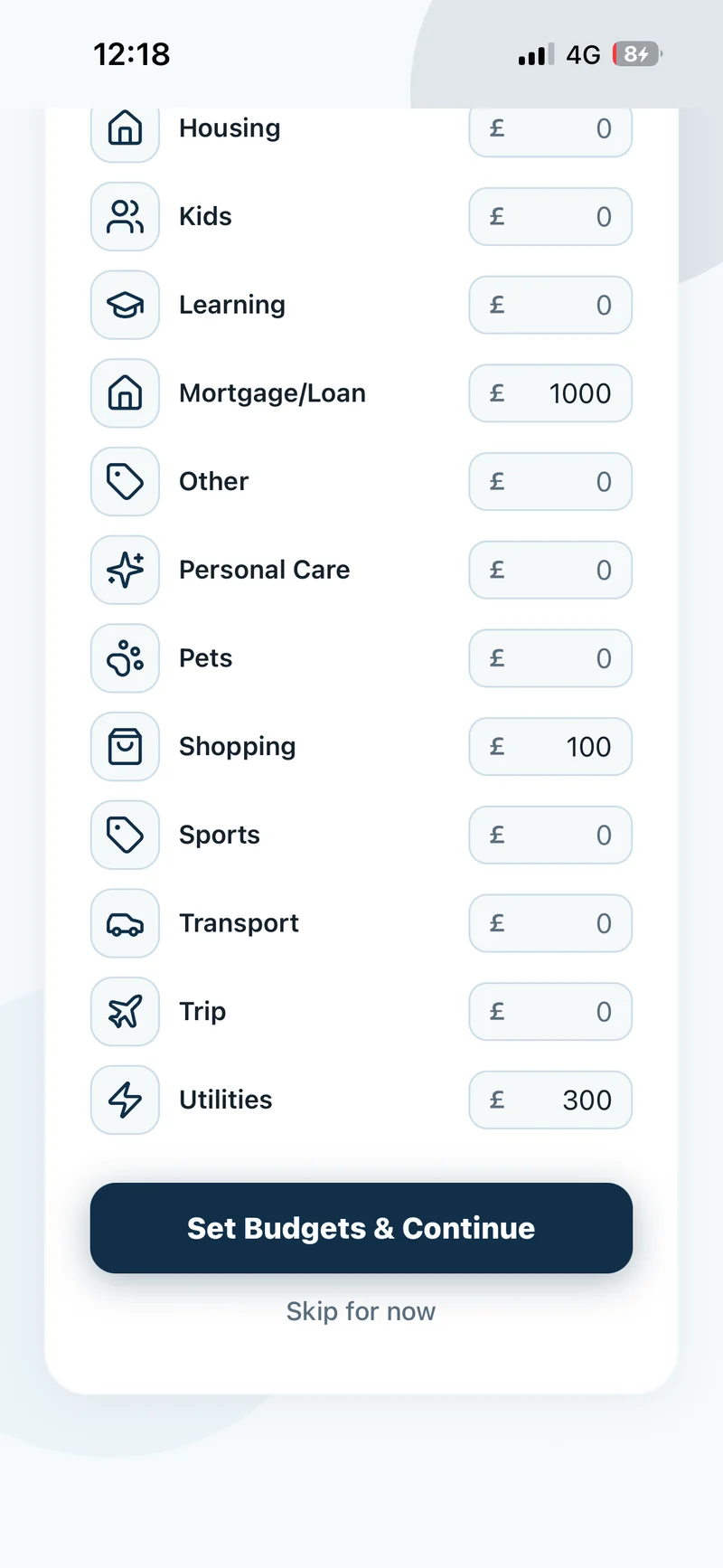
On Set family budgets, enter monthly limits for the categories you want to track together, such as Groceries and Utilities. Leave the other categories at £0. Scroll down and tap Set Budgets & Continue, or tap Skip for now to do this later.
Show screenshots
Choose your personal budgets
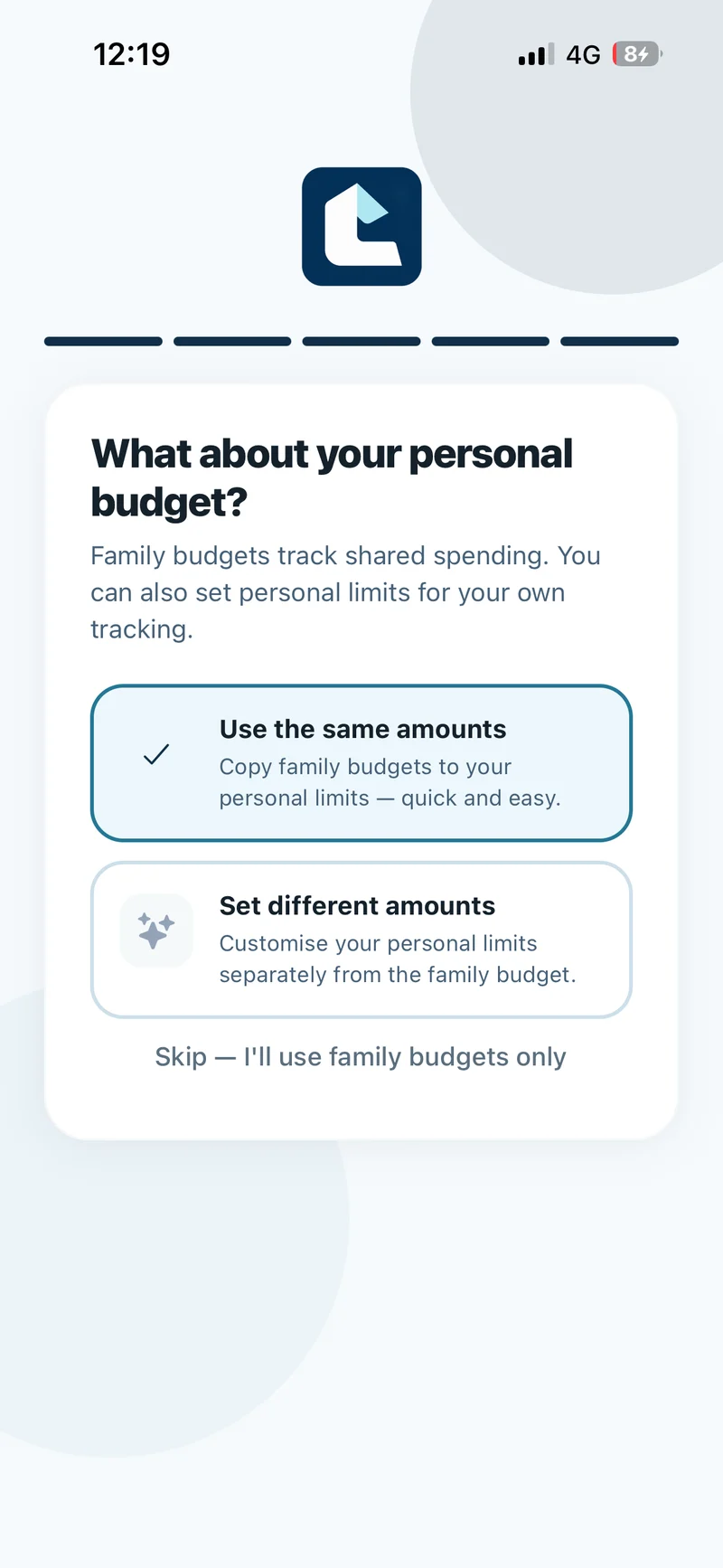
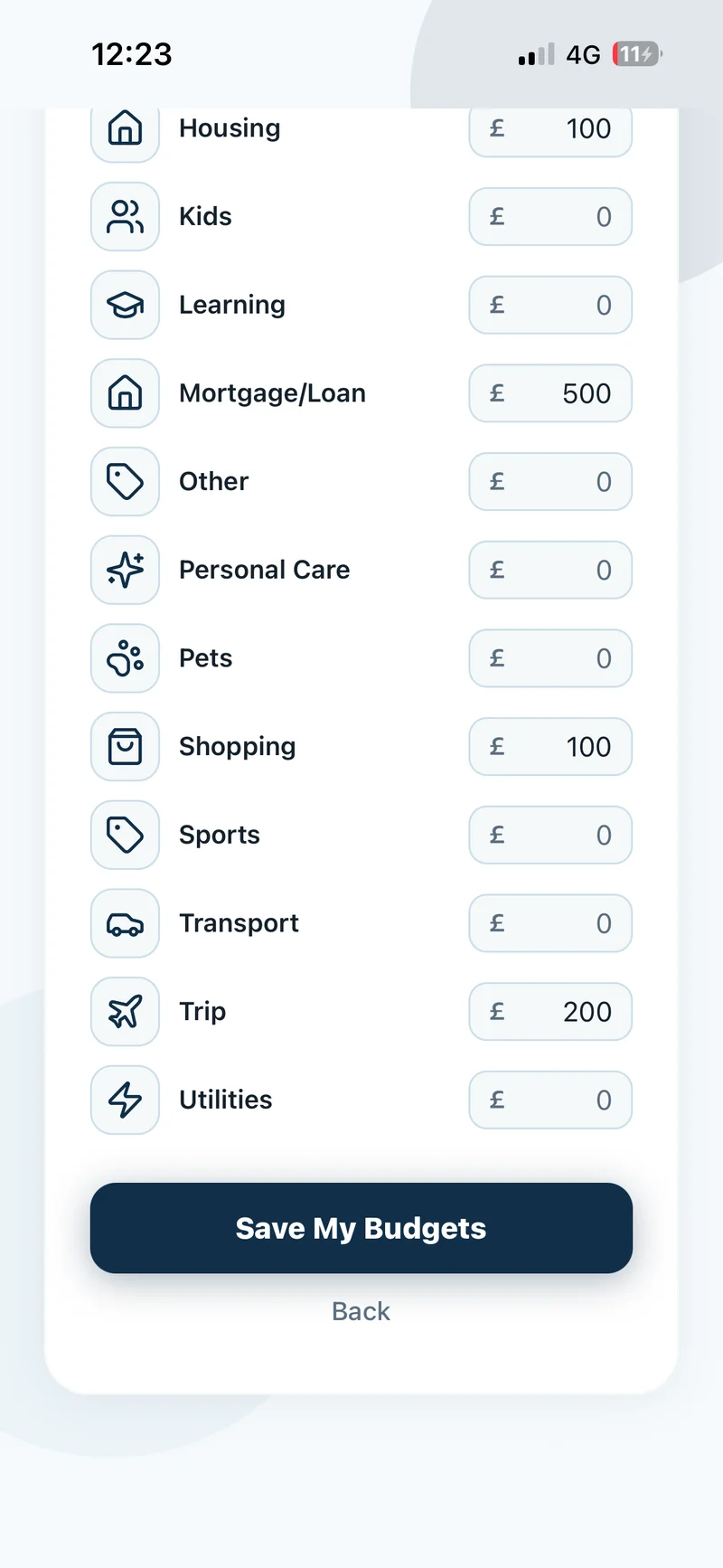
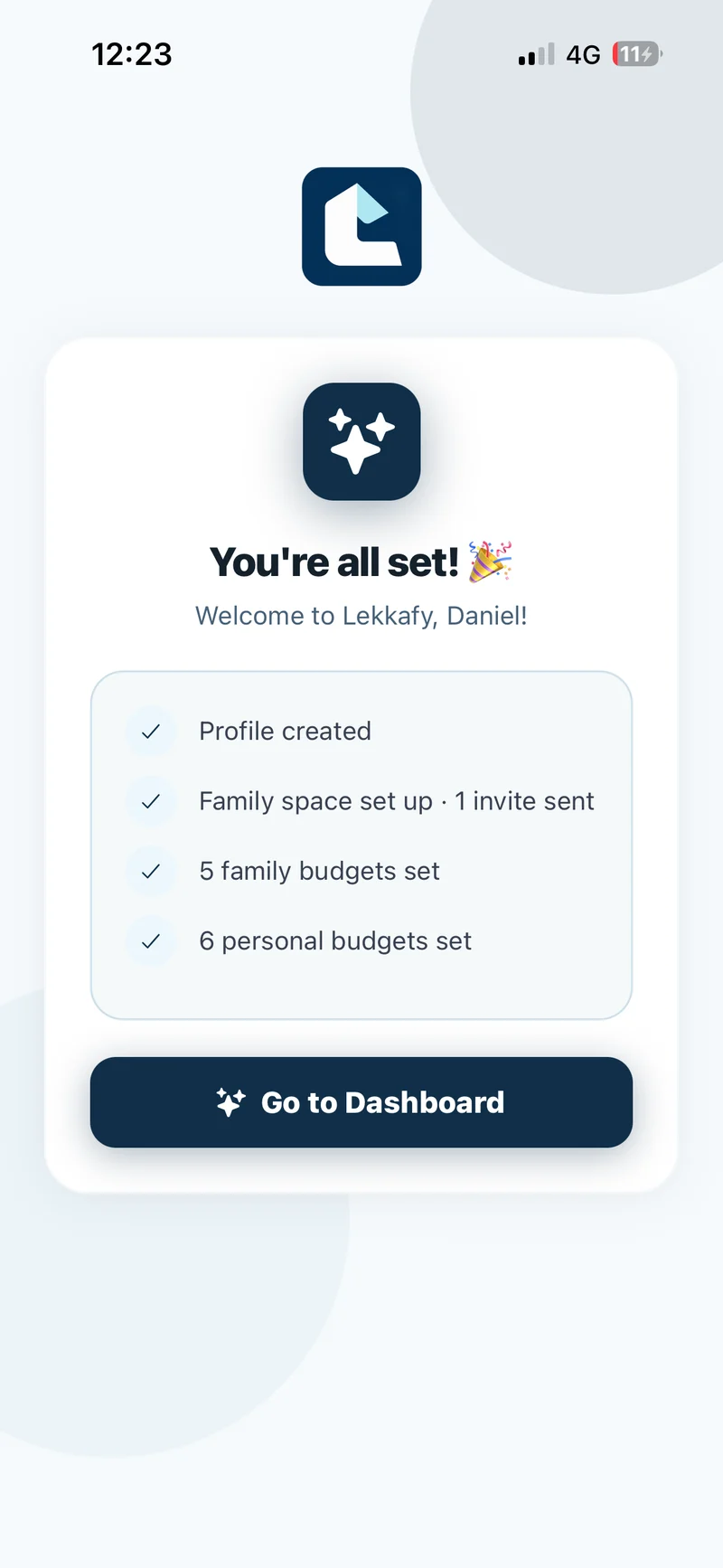
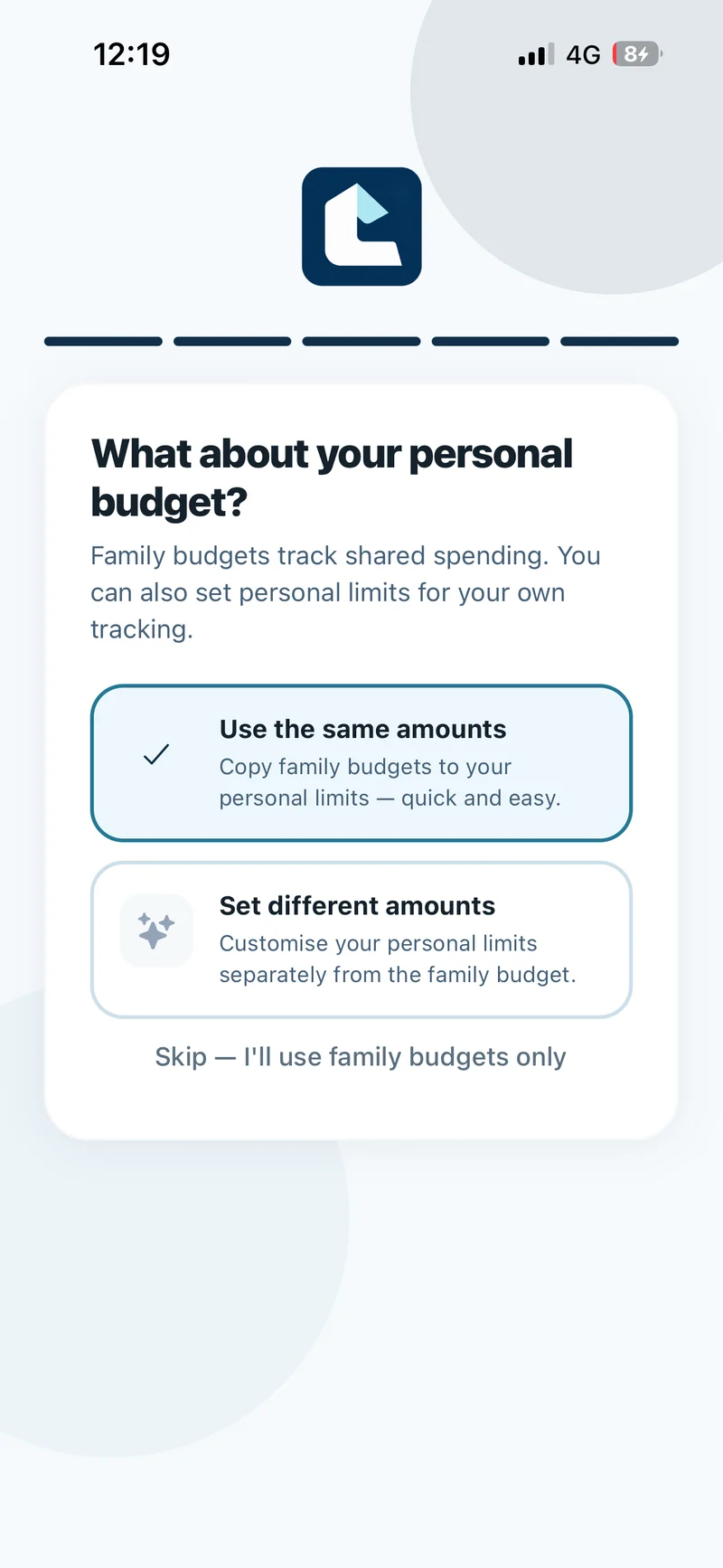
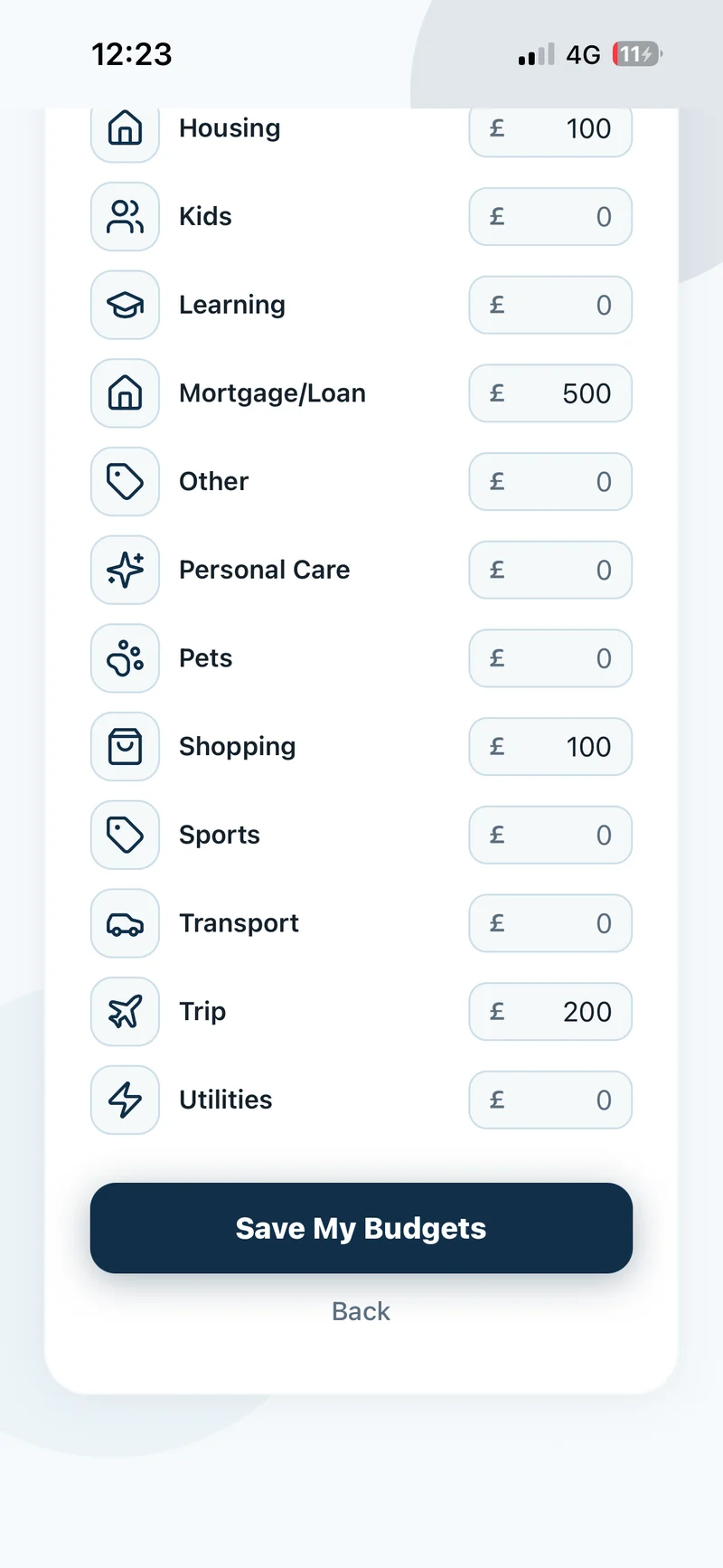
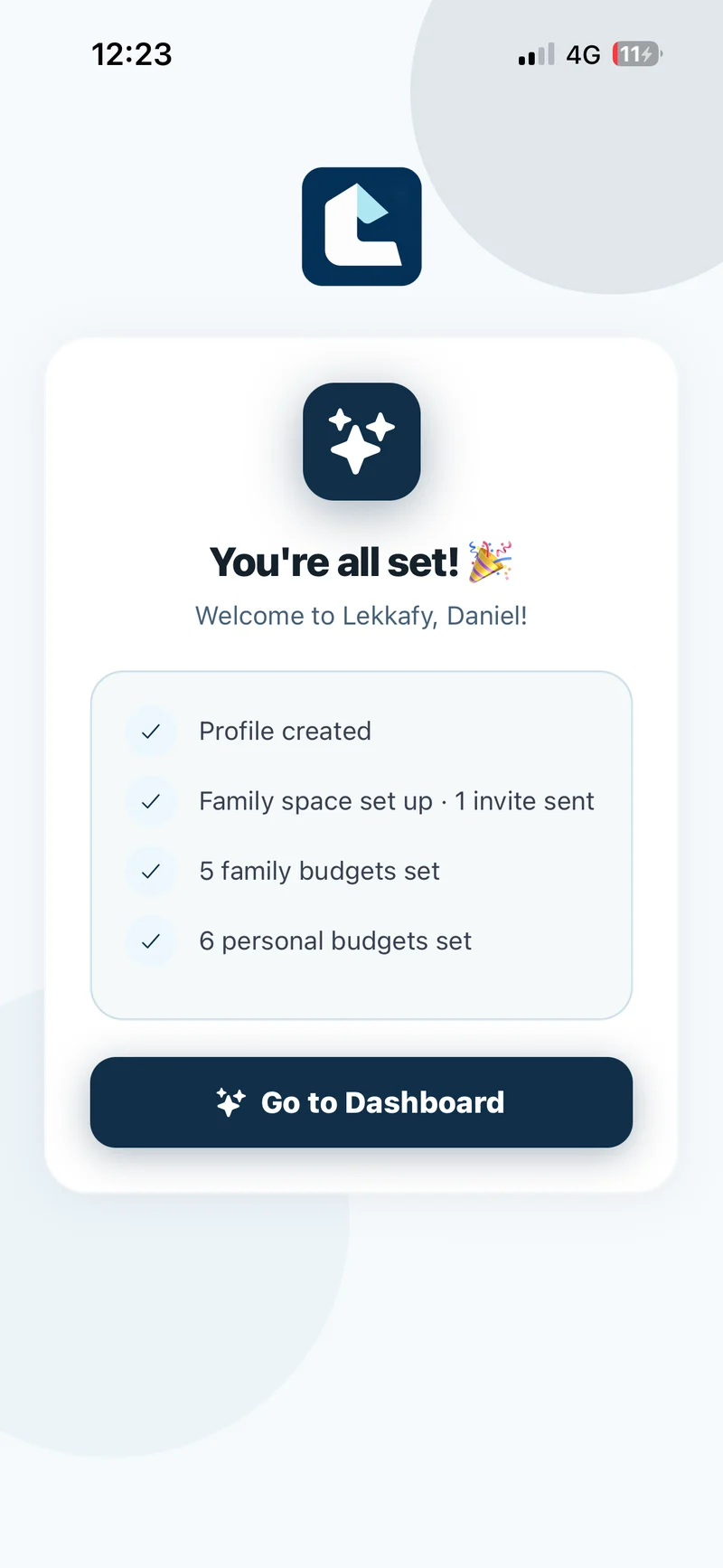
Tap Use the same amounts to copy the family limits, Set different amounts to enter your own limits and tap Save My Budgets, or Skip — I’ll use family budgets only. On the confirmation screen, tap Go to Dashboard.
Show screenshots
Check who has joined
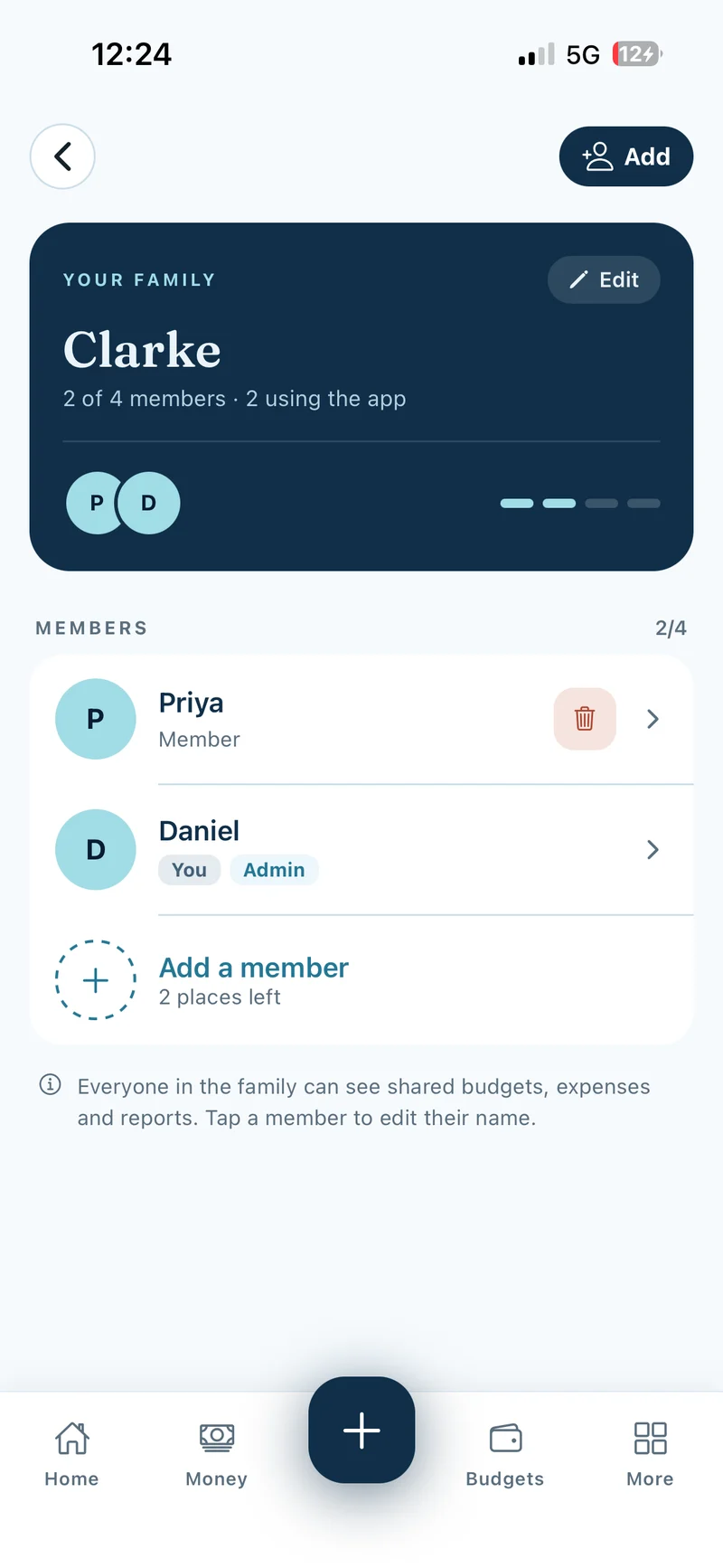
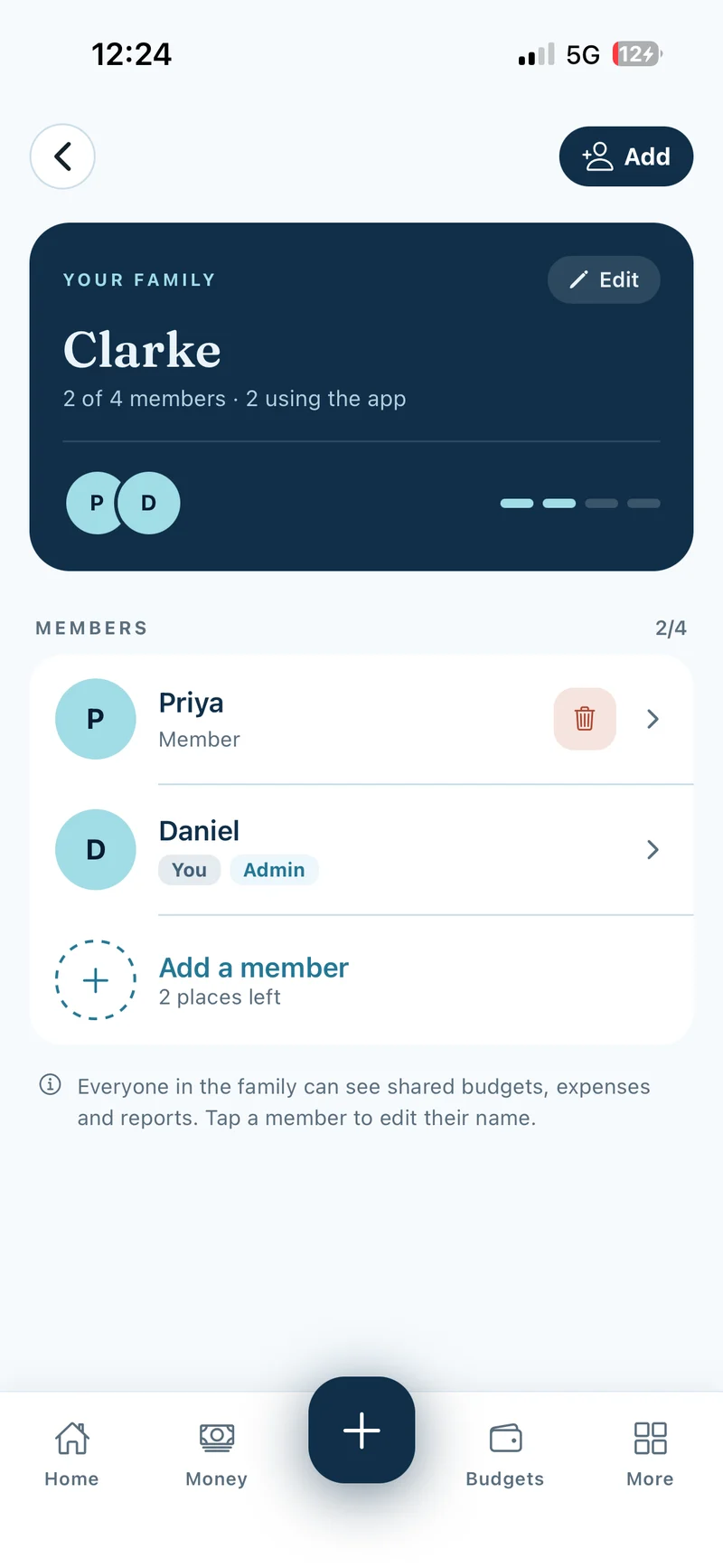
Open More and tap your family under Household to check the member list. Family members can see budgets, expenses and reports in Family mode, including individual entries shown in that view.
Show screenshot
Add savings and check the household total
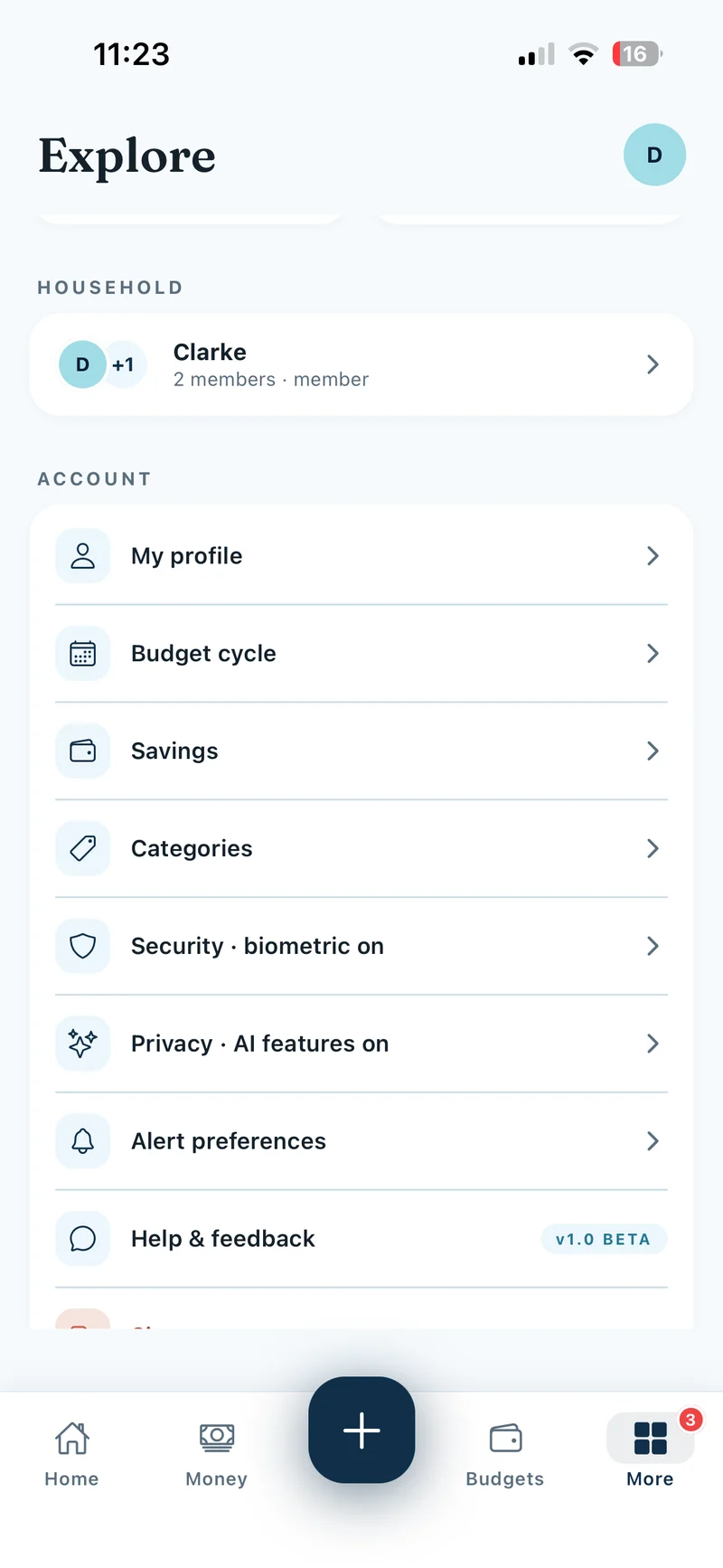
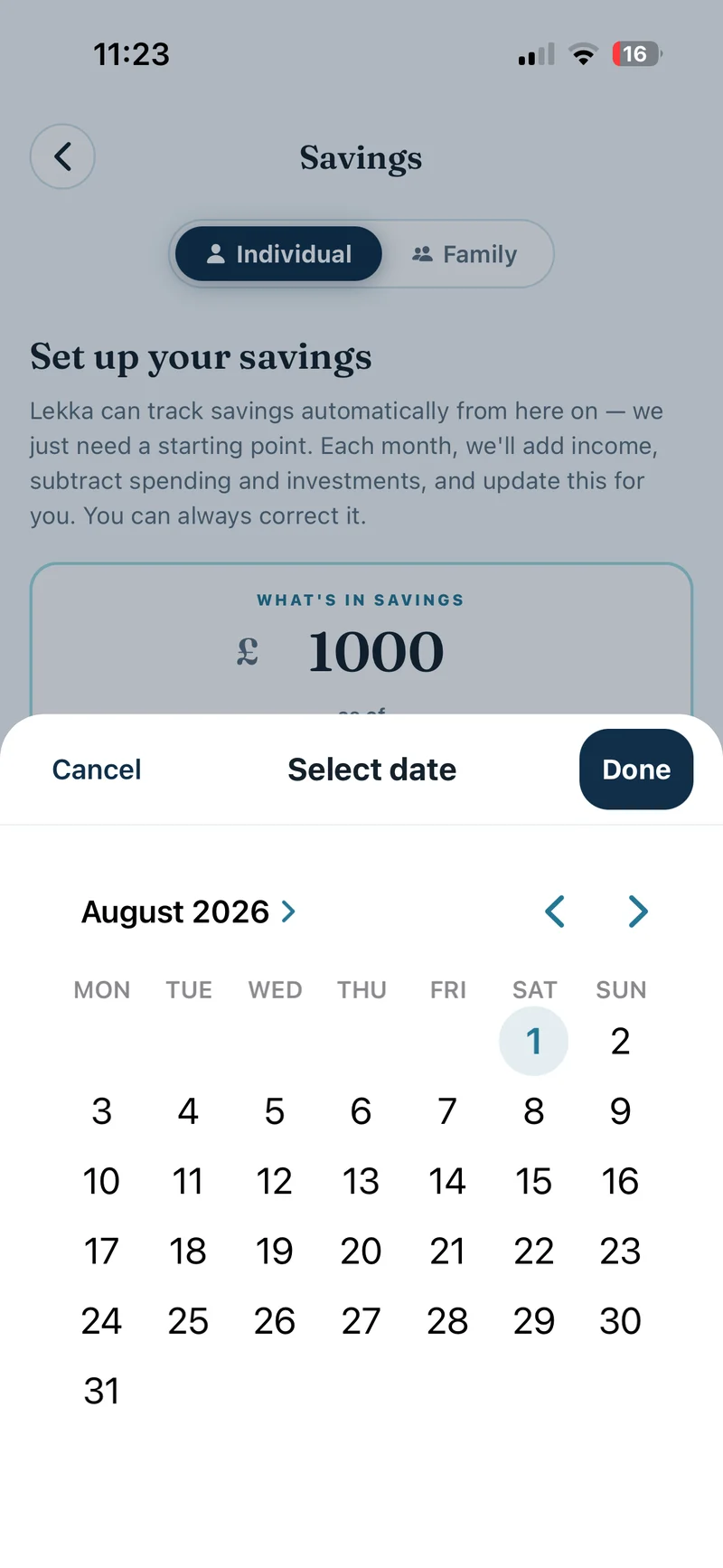
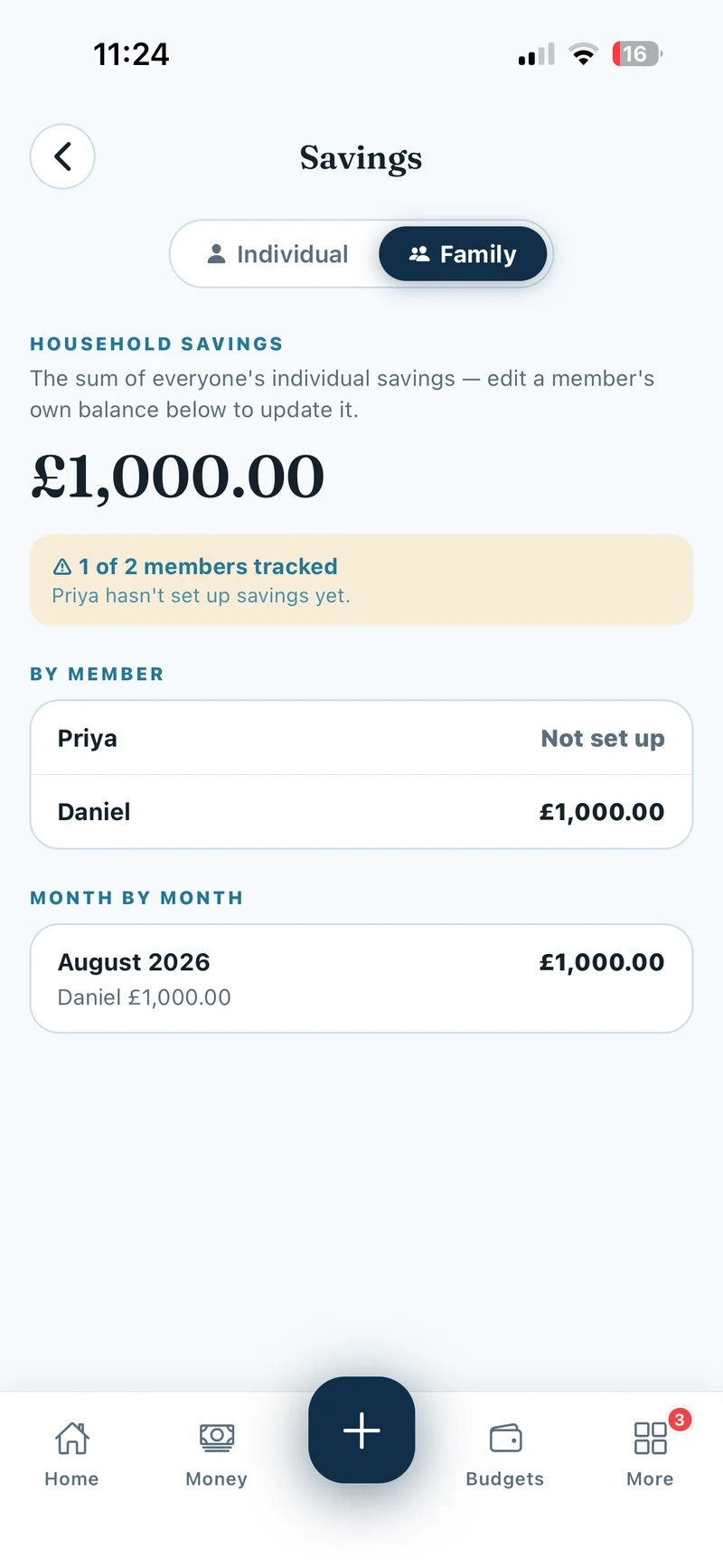
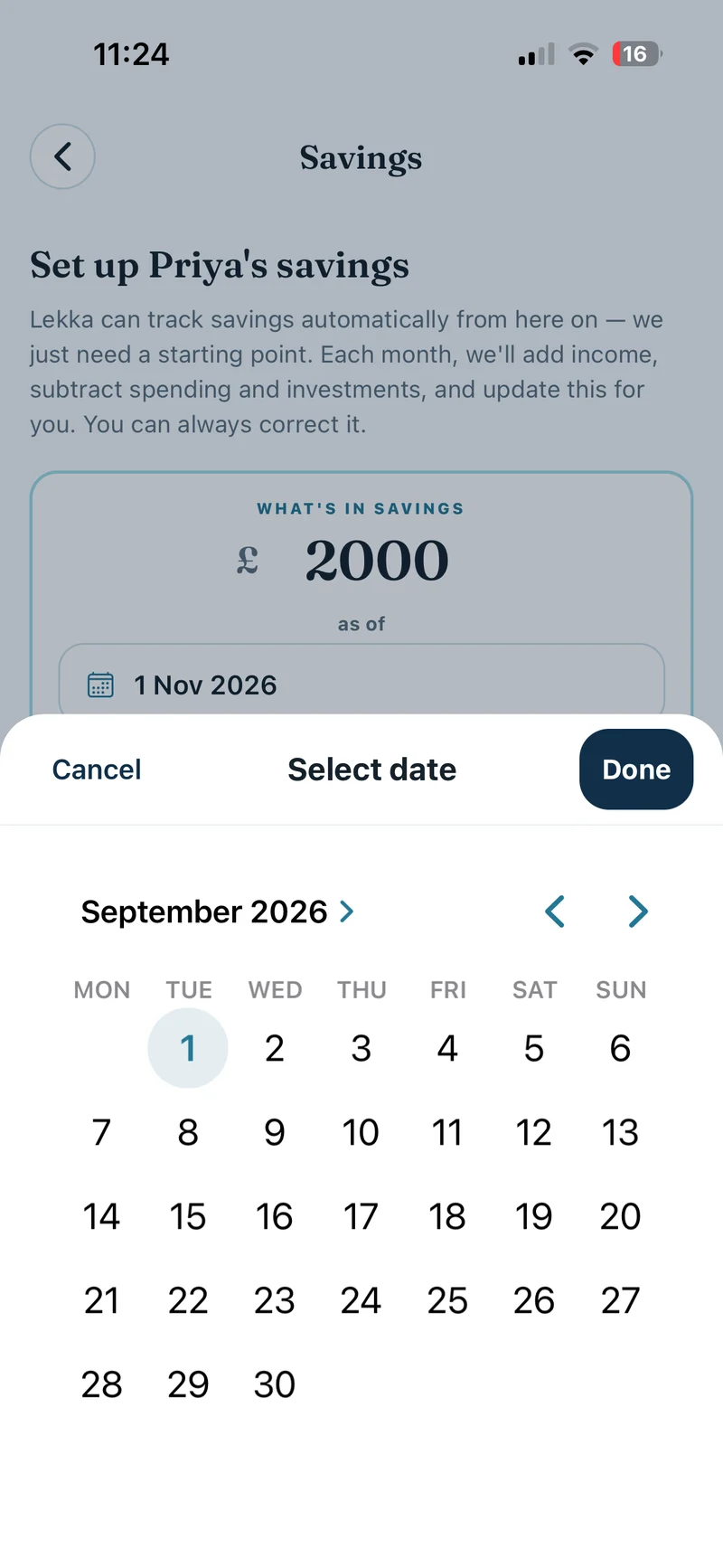
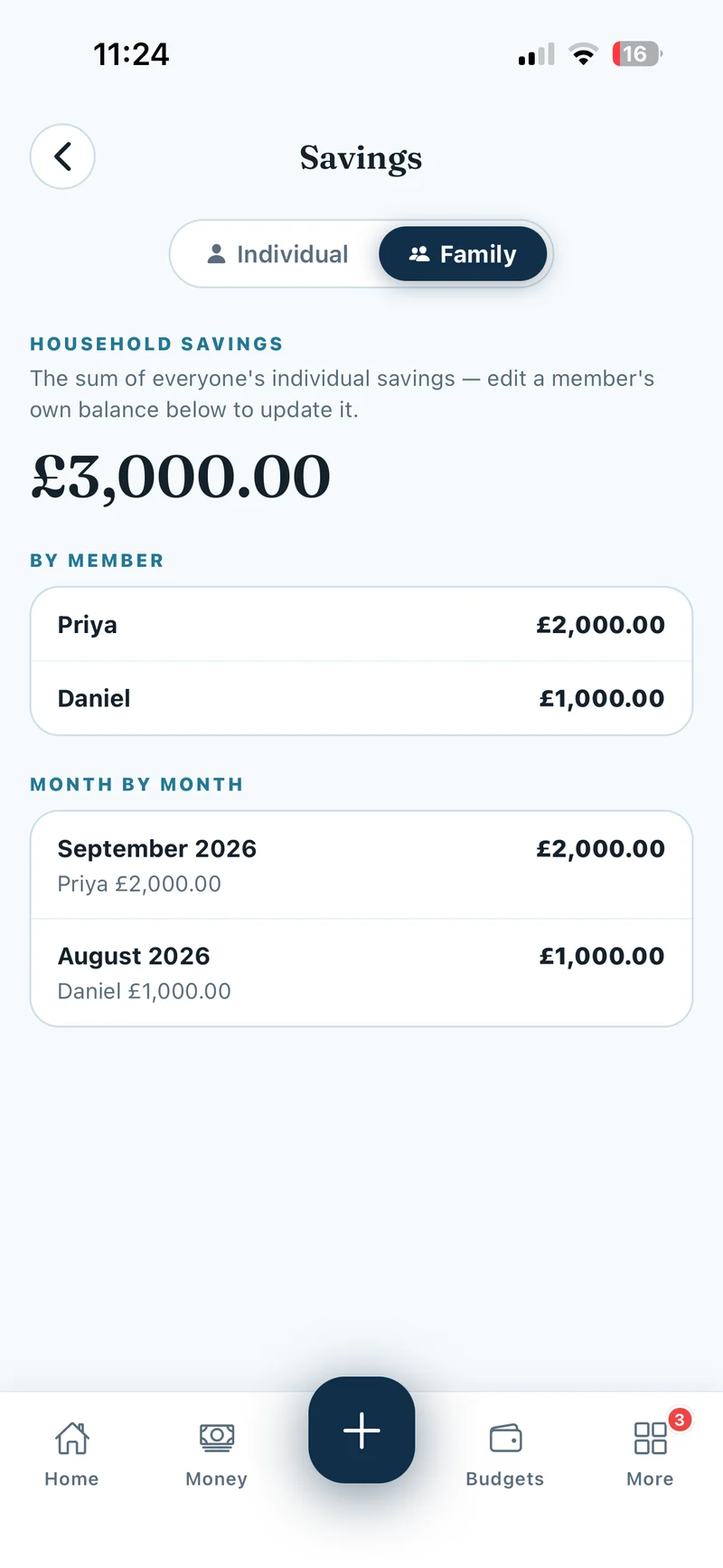
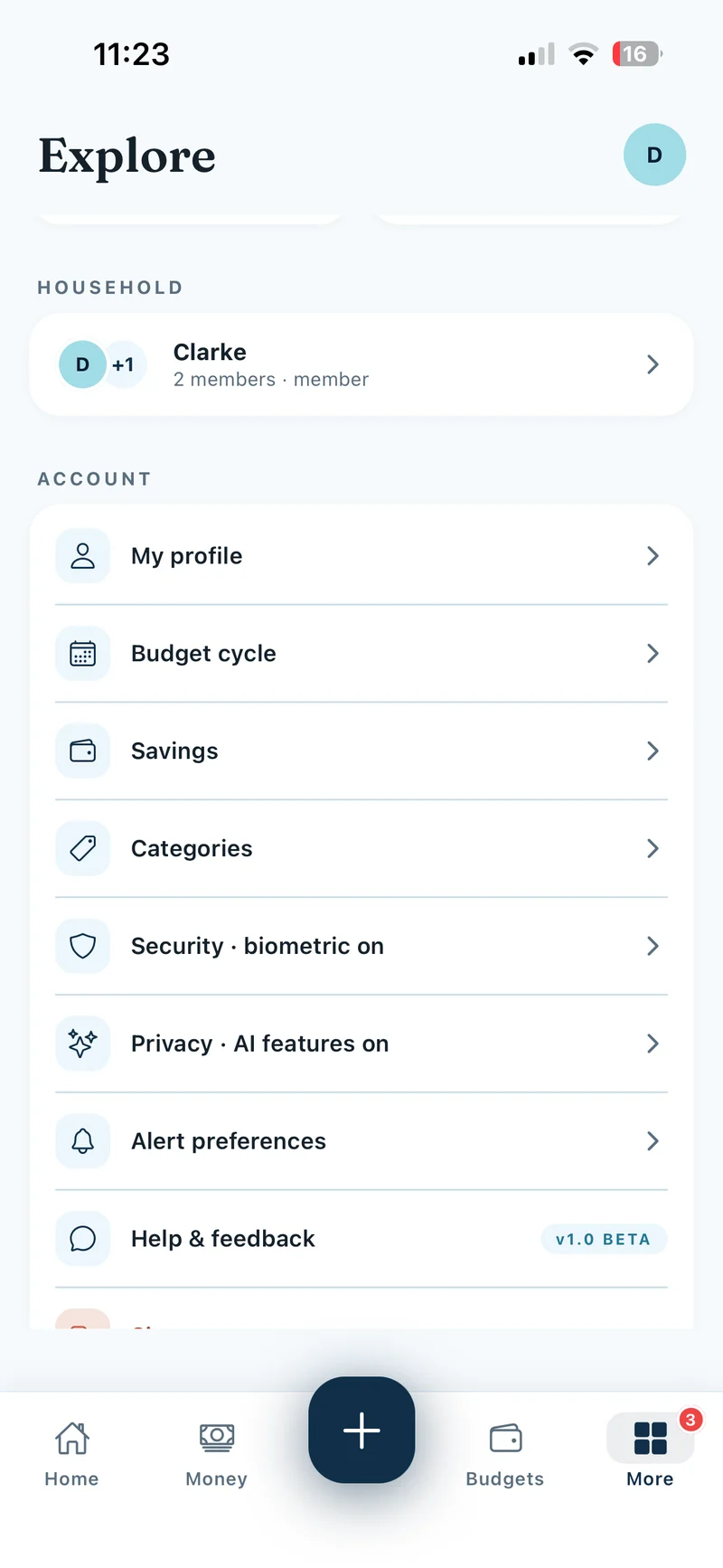
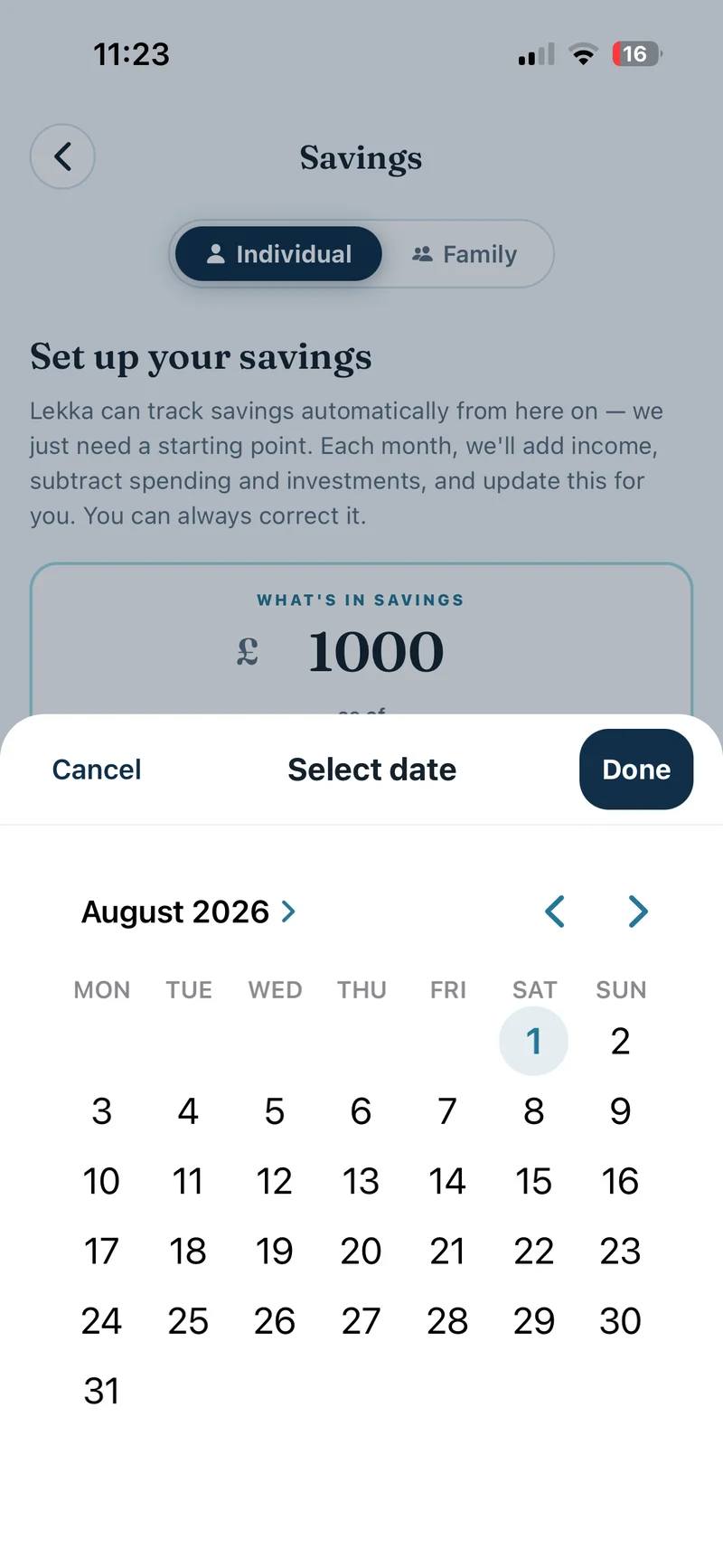
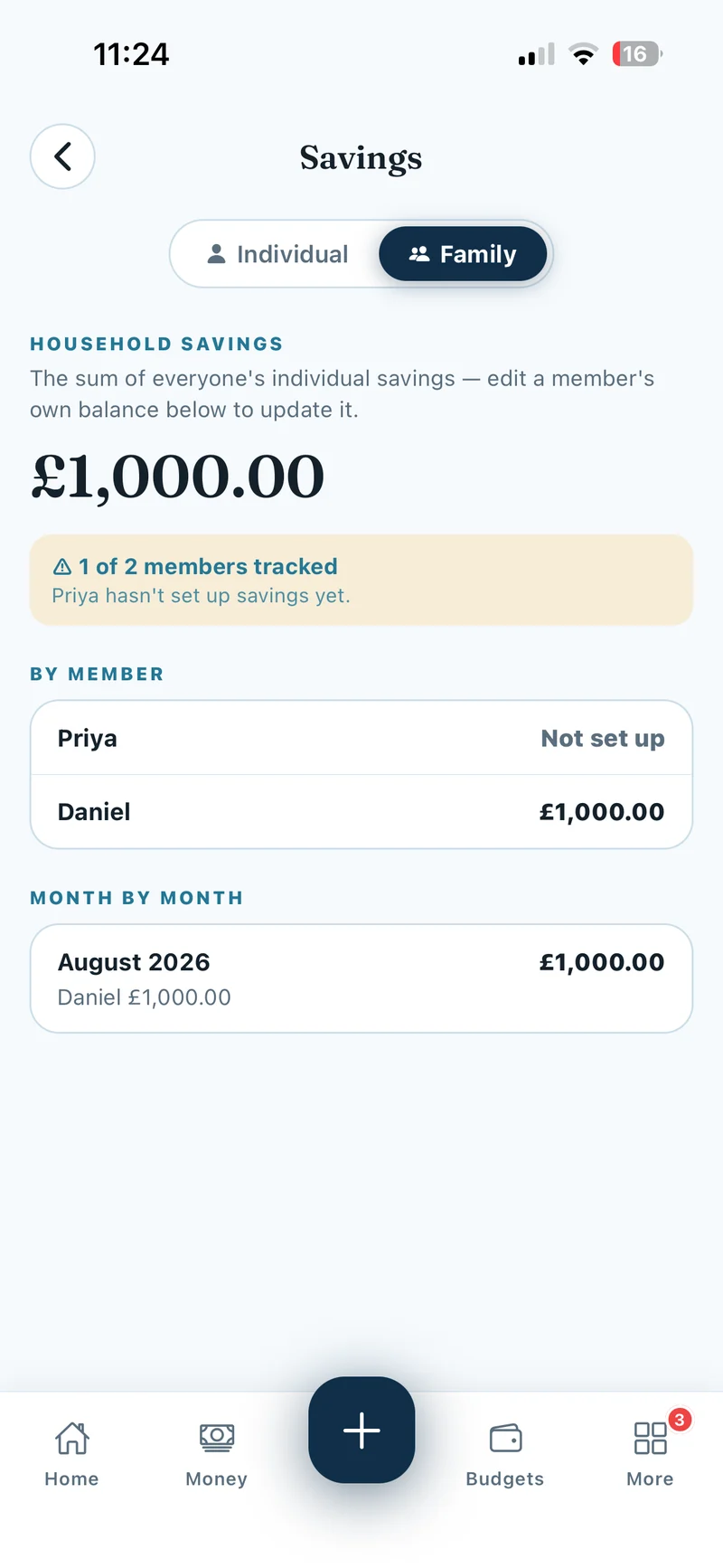
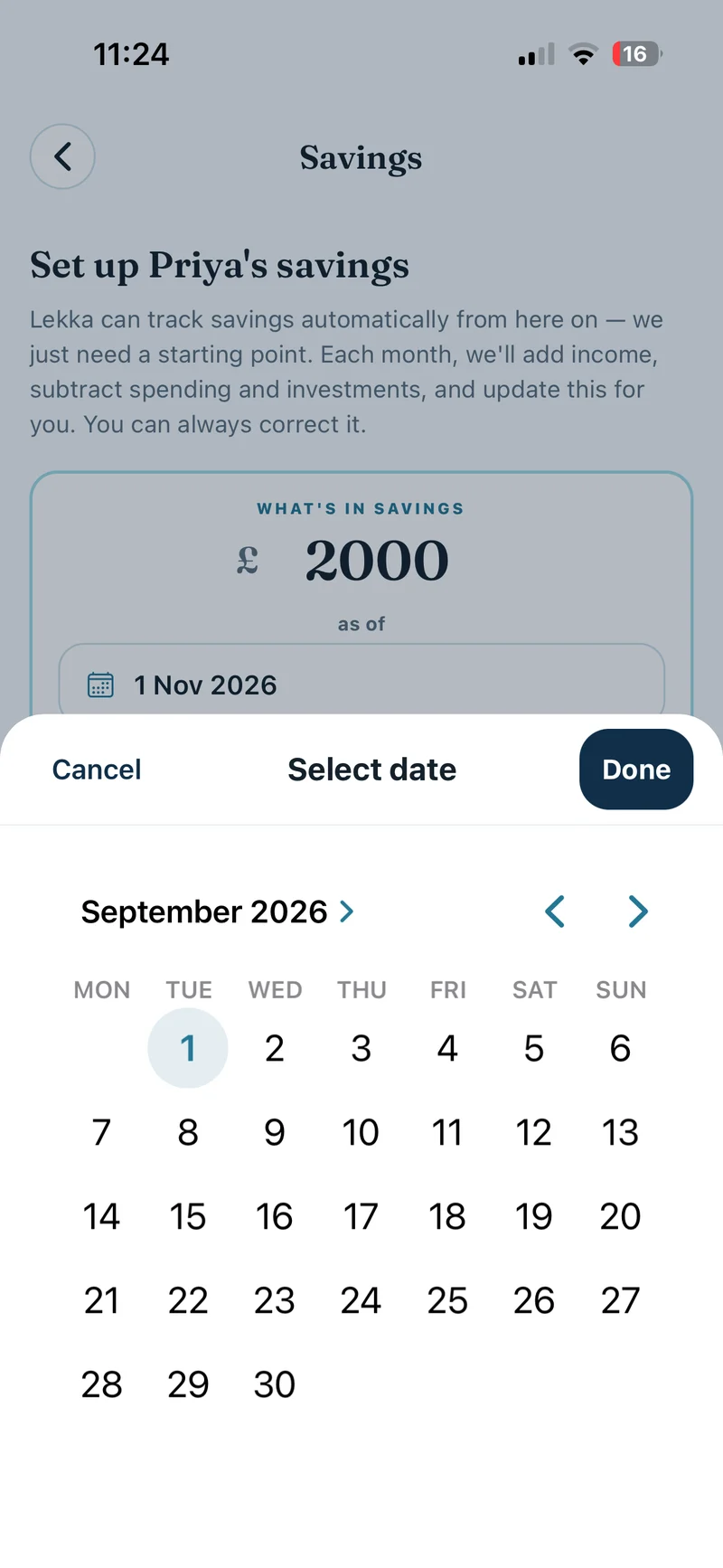
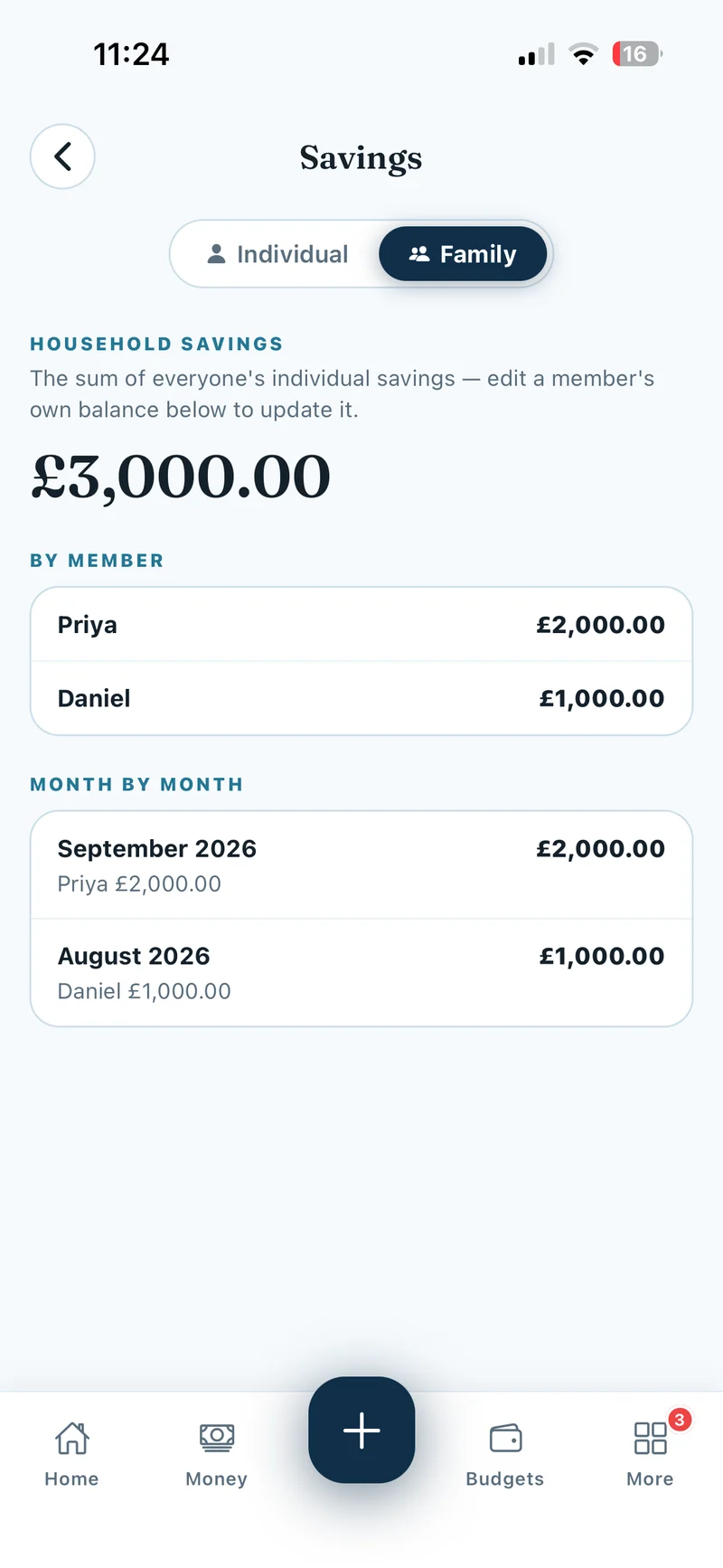
Open More → Account → Savings. In Individual mode, enter what you’ve saved, choose the as of date, confirm the date and tap Save & continue. Switch to Family to see the total and who is tracked. Under By member, tap a member to open their savings and add their balance and date if needed. Use the back arrow to return to the household total.
Show screenshots
Set up your household’s Safety Net Runway
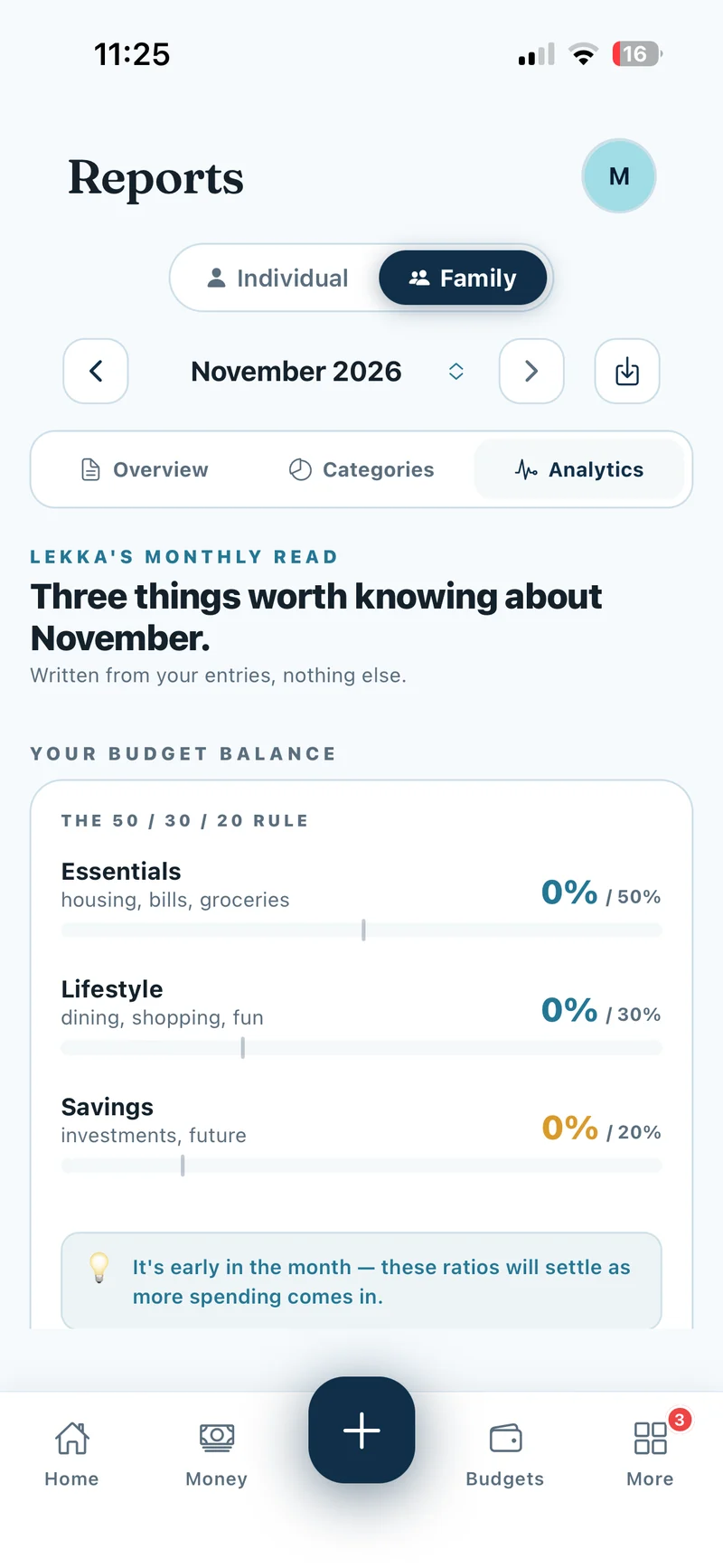
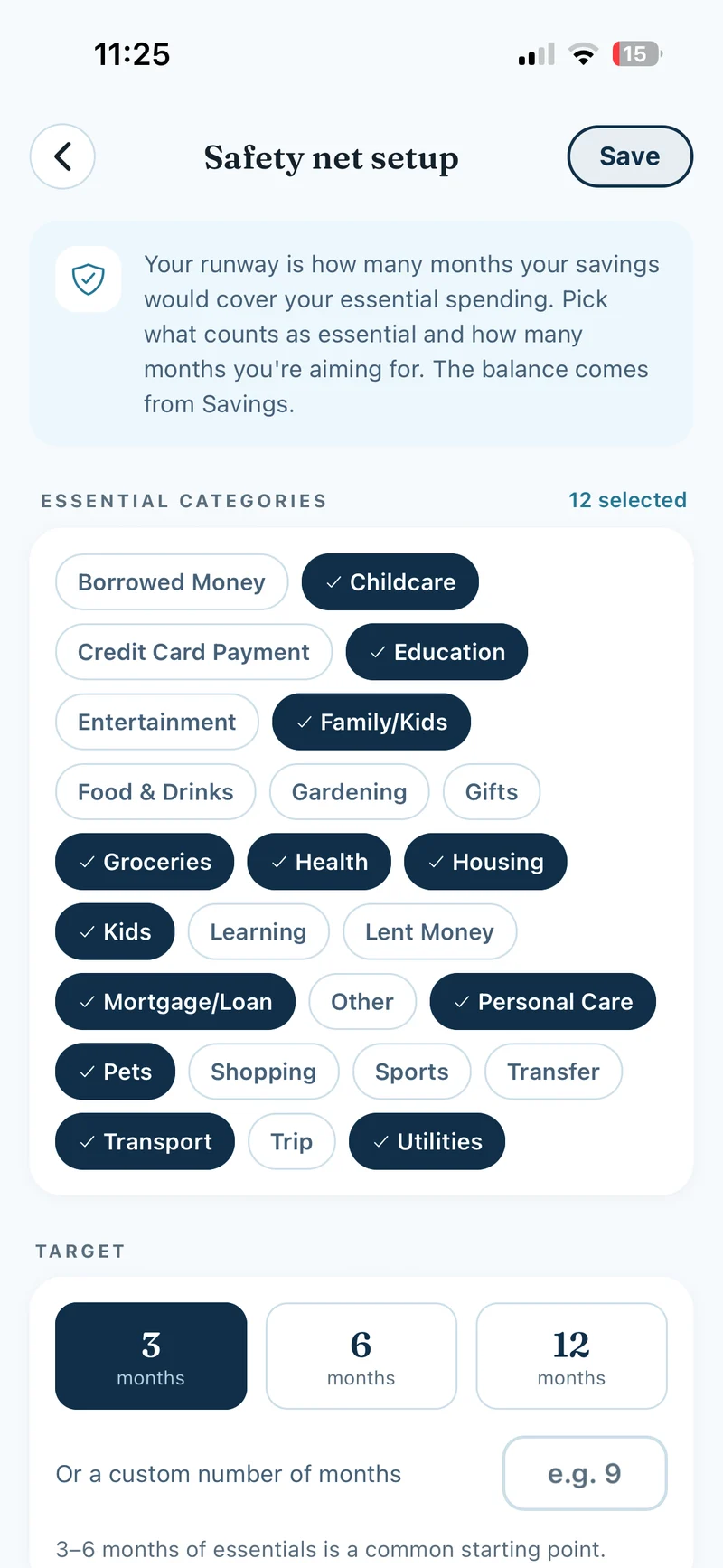
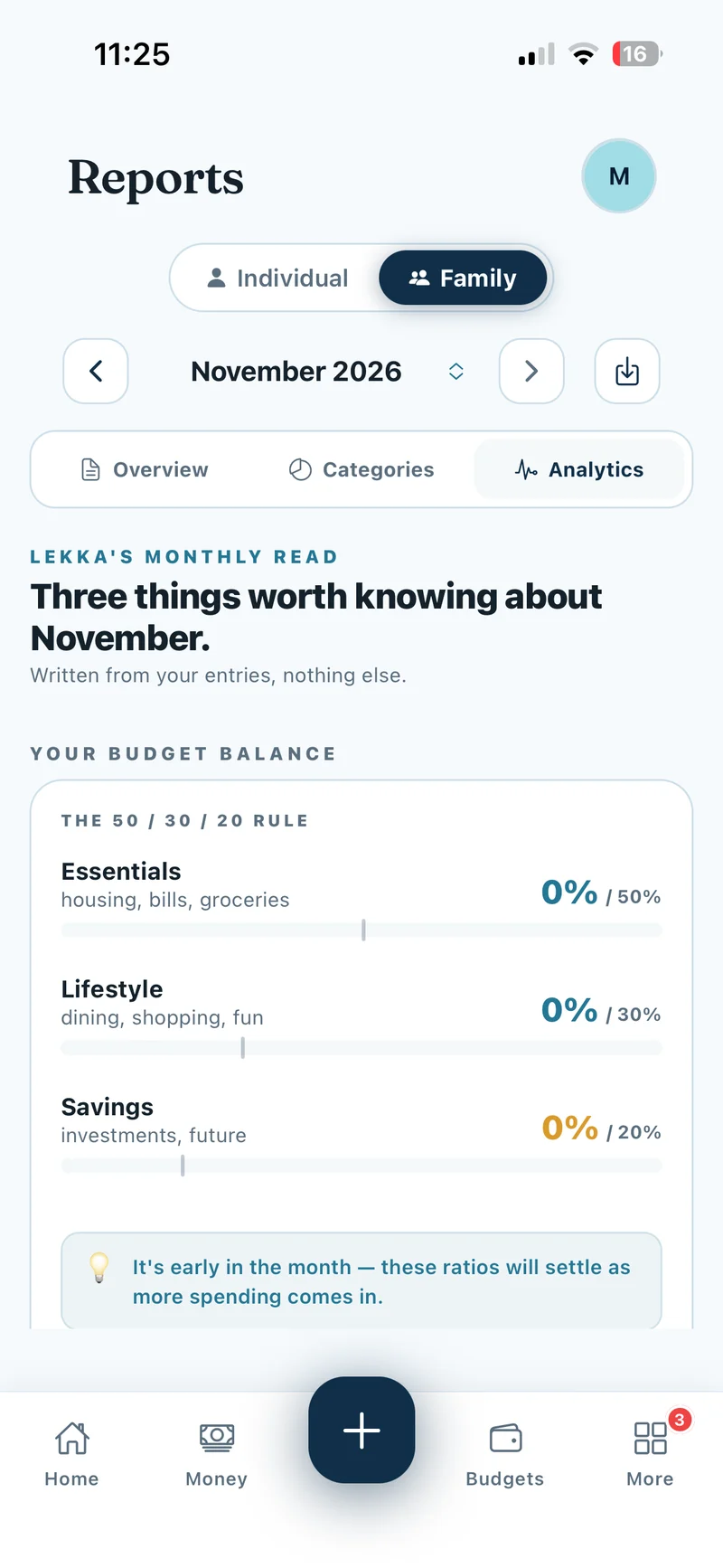
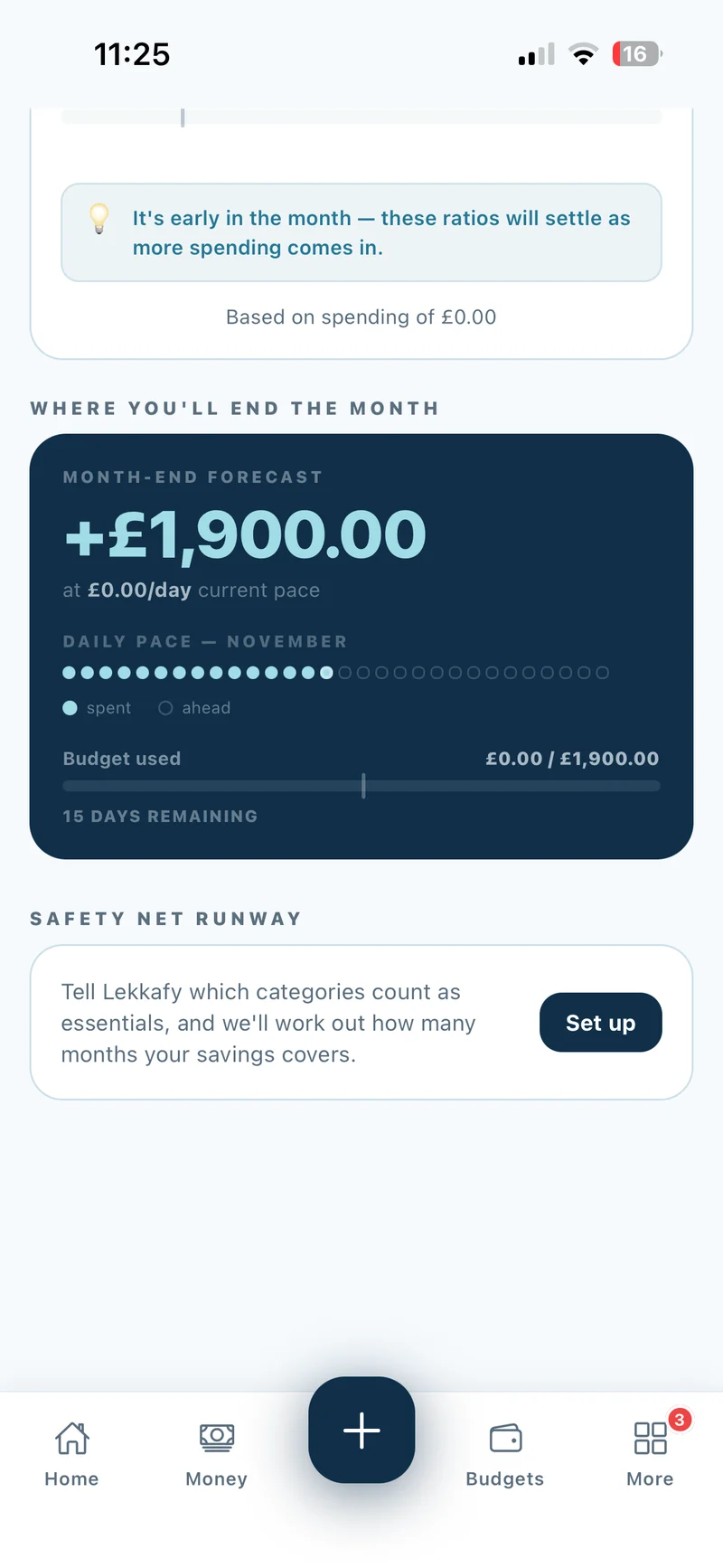
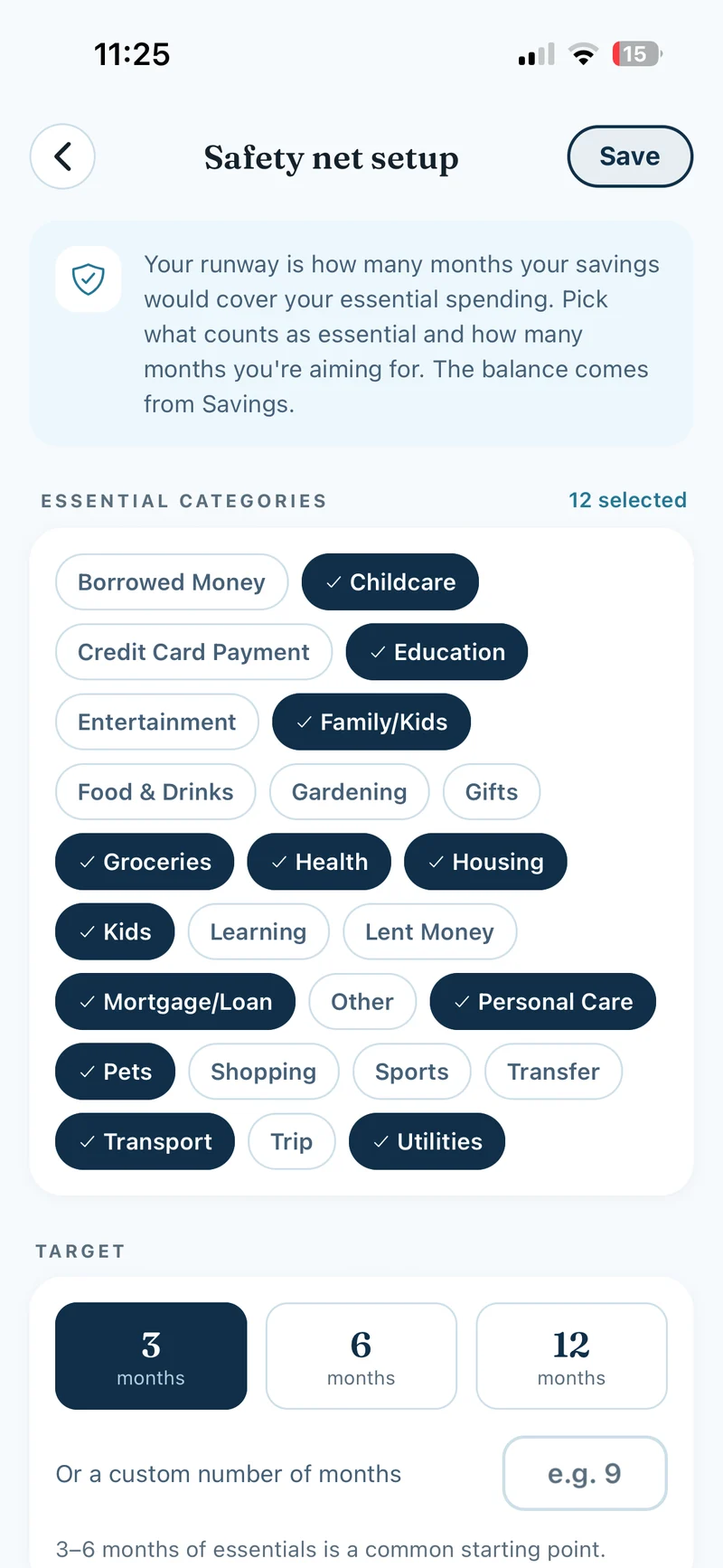
Open More → Reports, select Family and open Analytics. With the current period selected, scroll to Safety net runway and tap Set up. Choose which categories count as essential spending, pick a target of 3, 6 or 12 months or enter your own, then tap Save.
Show screenshots
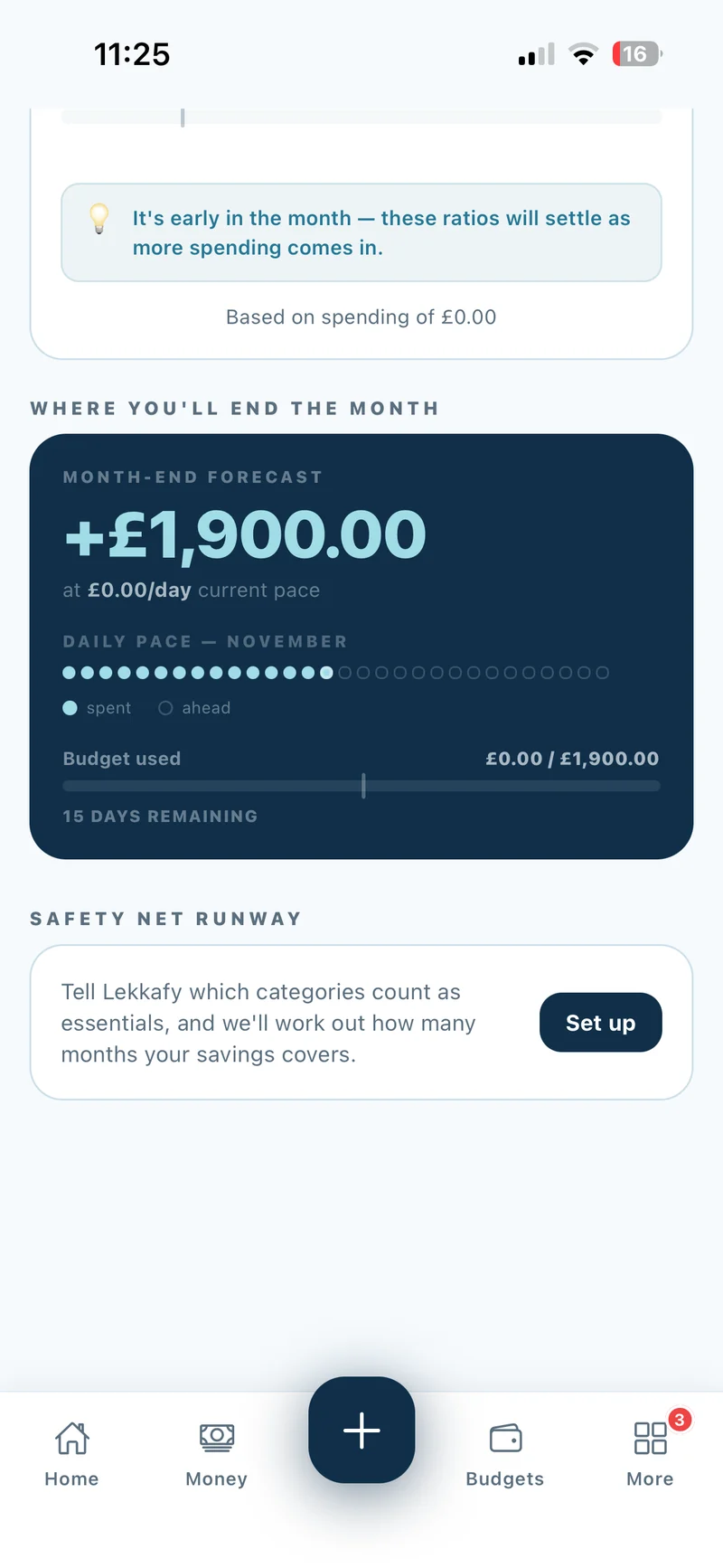
What is runway? It estimates how long your household savings could cover essential spending using the last three completed budget periods. The card appears once at least one member has added savings. A partial-data message shows when some household balances are still missing.